RDS Services List
RDS (Relational Database Service) is a database management service provided by AWS (Amazon Web Services). It allows users to manage, operate, and measure the performance of relational databases in a cloud environment. This service supports several types of relational databases such as MySQL, PostgreSQL, Oracle, SQL Server, and MariaDB, and provides features such as storage, replication, backup, and performance monitoring. With RDS, users can easily manage databases without having to worry about hardware and software configuration and manual database infrastructure maintenance.
Database
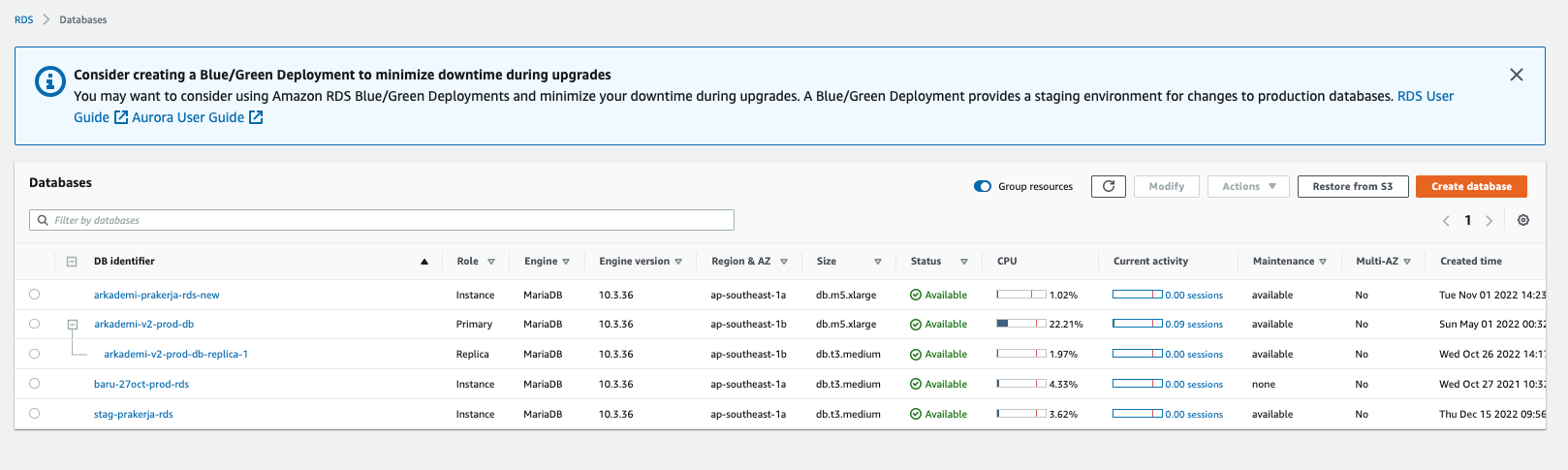
The RDS running at the academy is listed in the picture below:
Function
The RDS listed in the previous section have different functions, which are:
| Name | Role | Endpoint | Description |
|---|---|---|---|
| arkademi-prakerja-rds-new | Primary | arkademi-prakerja-rds-new.cn2z8bw9bvxv.ap-southeast-1.rds.amazonaws.com | DB Production Prakerja |
| arkademi-v2-prod-db | Primary | arkademi-v2-prod-db.cn2z8bw9bvxv.ap-southeast-1.rds.amazonaws.com | DB Production Reguler (Write) |
| arkademi-v2-prod-db-replica-1 | Replica | arkademi-v2-prod-db-replica-1.cn2z8bw9bvxv.ap-southeast-1.rds.amazonaws.com | DB Replica Production Reguler (Read) |
| baru-27oct-prod-rds | Primary | baru-27oct-prod-rds.cn2z8bw9bvxv.ap-southeast-1.rds.amazonaws.com | DB Staging Reguler |
| stag-prakerja-rds | Primary | stag-prakerja-rds.cn2z8bw9bvxv.ap-southeast-1.rds.amazonaws.com | DB Staging Prakerja |
- The above database can be changed at any time based on needs. For example: high traffic, small RDS Server resources, etc. Changes can be in the form of adding replicas, changing database specifications, changing database versions, etc.
- A replica database is a replication of an existing master database, which functions only for Read operations. It is different from the Master which can have 2 functions at once Read & Write. Replicas are quite often needed because the admin of the wordpress v1 application requires a large enough Read query operation, so it can consume Database resources and load the application workload.
- Replica addition can occur as needed.
- You are using mySQL Database with version 5.5.5 and MariaDB engine version 10.3.36.
RDS Database Access
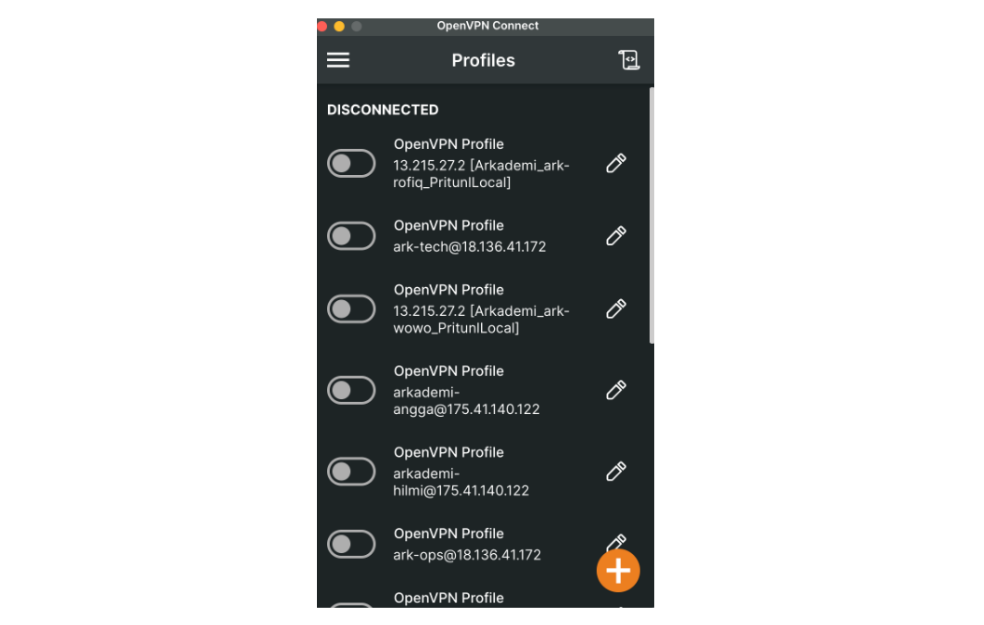
Some developers and data people can access the RDS Database directly for the purposes of application development or data processing. Contact the DevOps team regarding accessing VPN or Database passwords. The existing VPN is on the Arkademi VPC network, while the RDS is on the Arkademi Private Network, so the RDS Database will not be accessible from outside without using a VPN. To access the VPN, use the OpenVPN app.
Create Replica Database
-
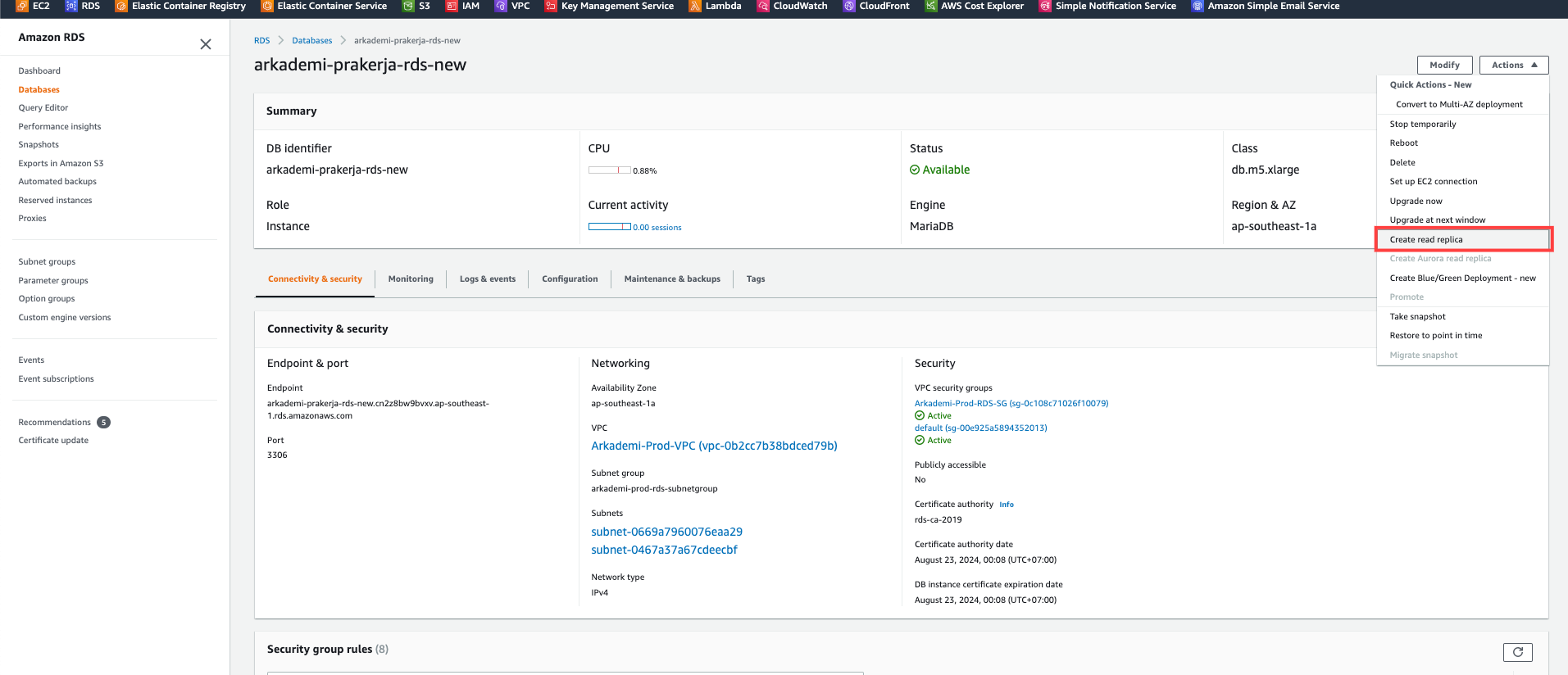
To create replica database, click one database and choose action.

-
Then click Create Read Replica.
-
Fill in the DB Instance Identifier with the same name as the master and add
-replica-1. Select the DB specification, then scroll down to the bottom then click create read replica.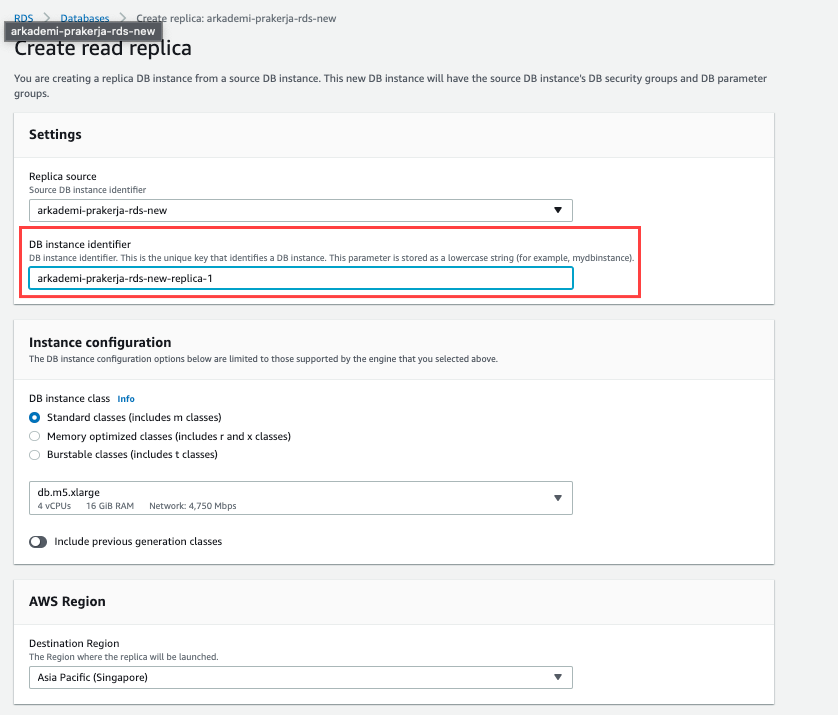
-
Once the replica is created, which takes 5-10 minutes, it is marked complete until its status changes to available.

Backup Database
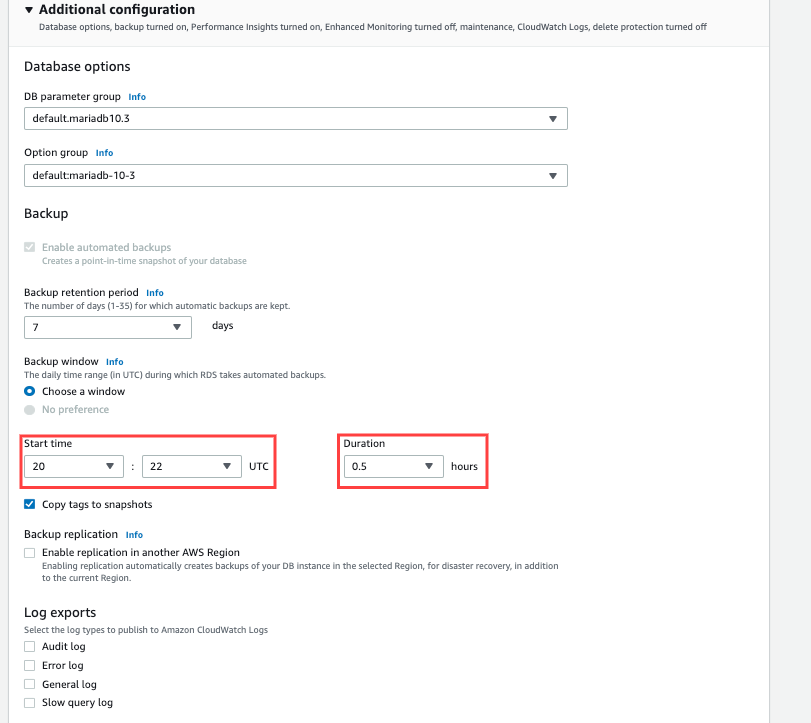
Backup can be done automatically (managed by AWS) or manually, for automatic backups it is done every day based on the time we set. To set the database time based on the hours we want, the steps are as follows:
-
Click one database > modify > scroll down. In this step you need to set the start time and duration. It should be noted that the time uses the UTC zone, so you should convert it before filling in the fields. Next, set the duration to 0.5.
-
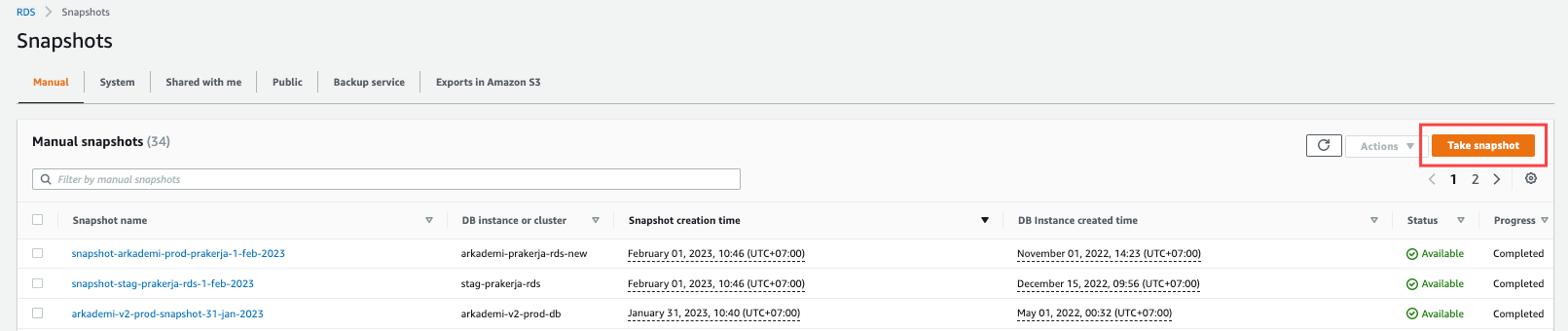
Select Snapshots in the menu to perform the manual backup.

-
Then choose Take Snapshot.
-
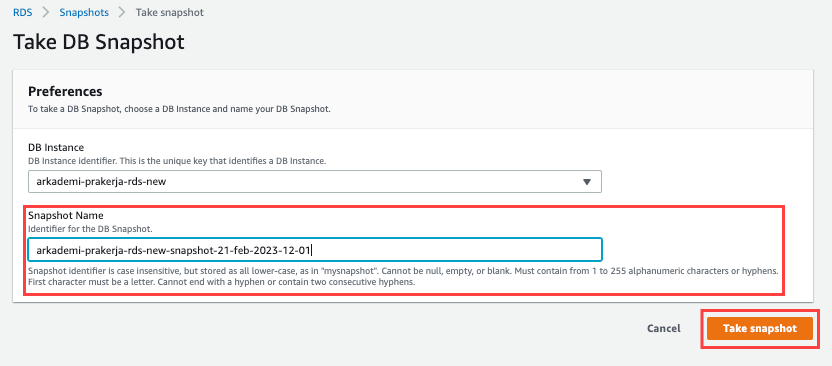
Select the database that you want to backup.

-
Enter the name of the snapshot and include the date-month-year-hour-minute to indicate when the database snapshot was manually created. Then click take snapshot.
-
Wait until the status is available and complete on the progress.


Restore Database
-
To restore the database on the snapshot page, in the manual tab select restore snapshot.

-
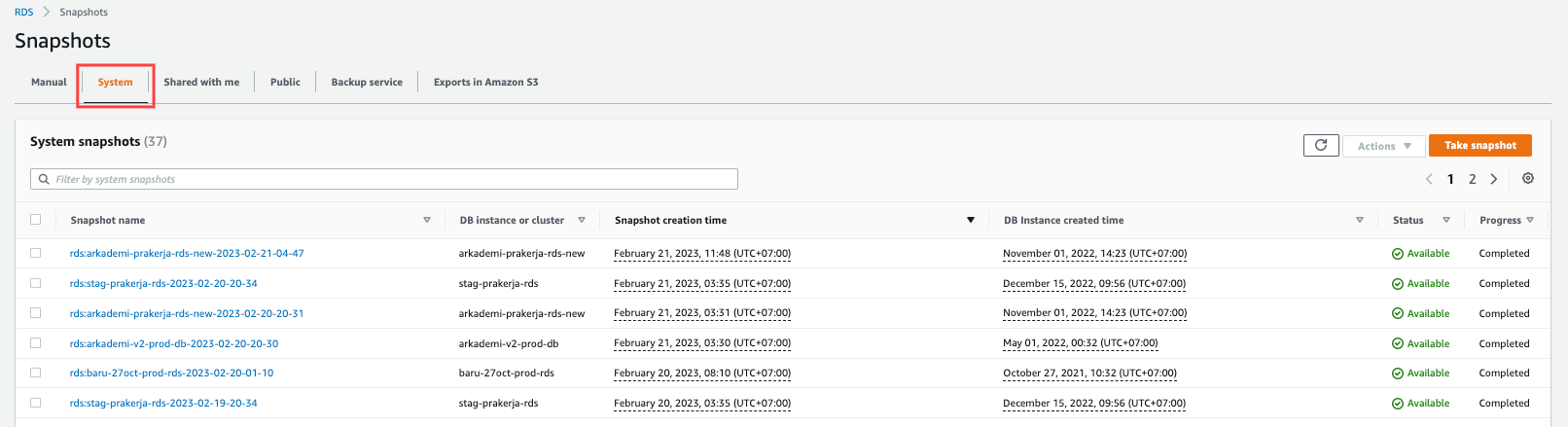
Or if we move to the system tab, it contains snapshots that are automatically backed up at the time you have set.
-
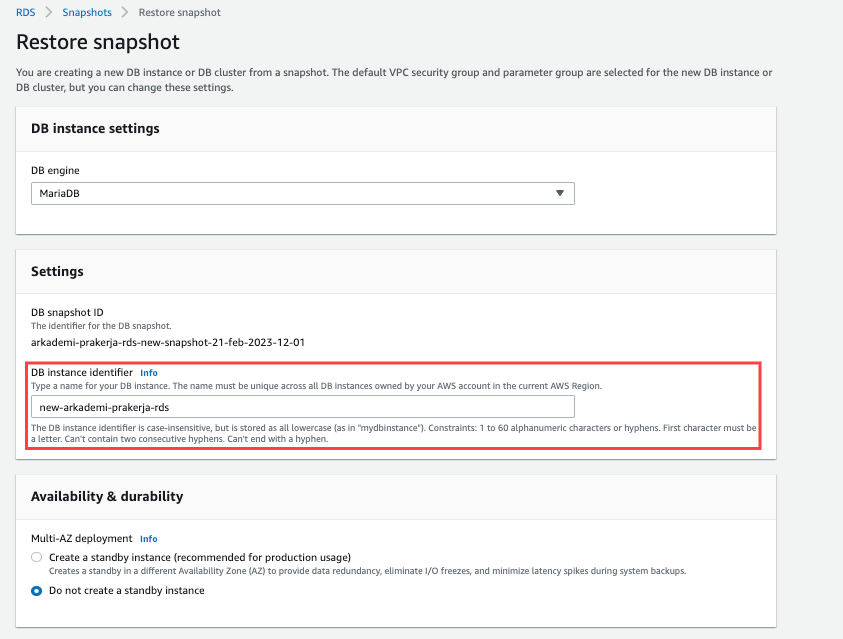
Next, select the DB Engine which is MariaDB. Fill in the DB instance identifier, the identifier name cannot be the same as the current RDS DB.
-
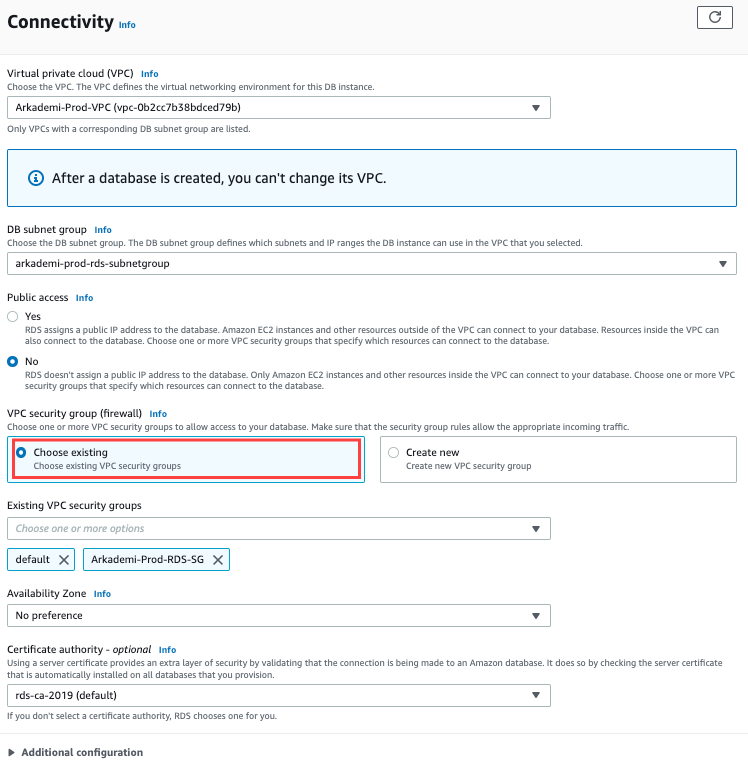
Next, make sure Connectivity (network) remains in the VPC.
-
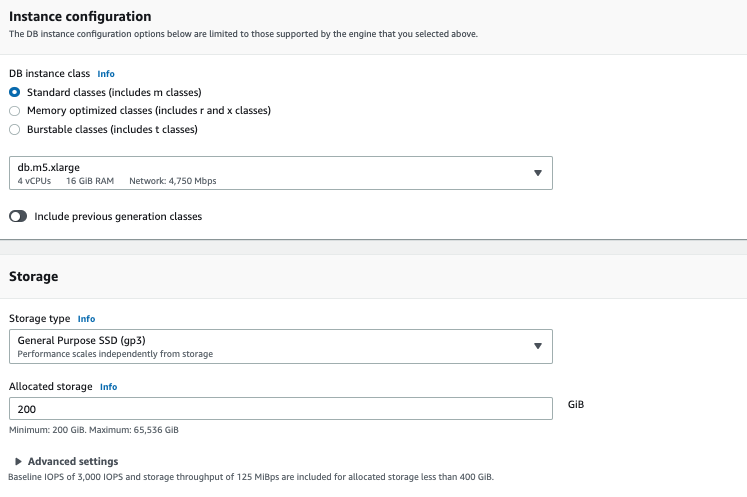
Then in instance configuration, select the appropriate specifications according to your needs.
-
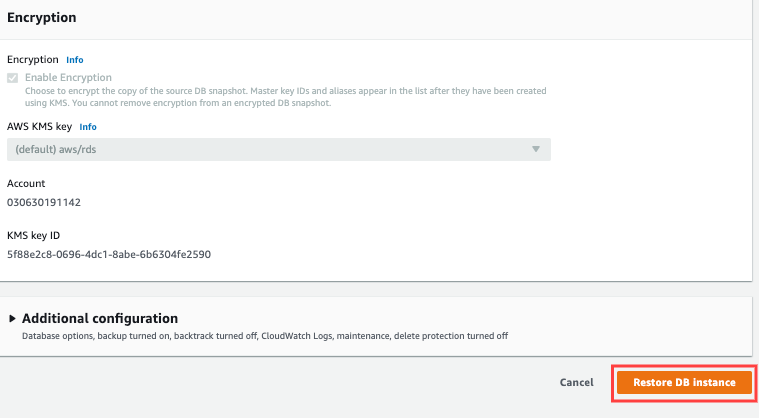
Go to the bottom of the page and scroll down and clik the Restore DB Instance button. Wait 5-10 minutes until the DB is successfully created, after that the restored DB can be used. The same steps can be done to restore either from Manual Snapshot or system Snapshot.
 note
note- Snapshot is a form of backup of the database, so it can be said Snapshot = Backup.
- Manual Snapshot and system snapshot are both forms of database backup, but the difference is:
- The system snapshot is a backup that is done regularly every day, it will backup with a retention of up to 7 days, if there is a snapshot more than 7 days it will be automatically deleted.
- Manual Snapshot is often done just in case we want to do experiments on the database, the goal is to avoid the unwanted things happened, if the unwanted things happen, then we can use the manual snapshot to restore.