OpenVPN Setting
Introduction
This document explain how to use OpenVPN
Overview
The OpenVPN settings in this document can be used by many users and can be used on Windows OS.
Link
Link to download the OpenVPN:
For MacOS
https://openvpn.net/client-connect-vpn-for-mac-os/
For Windows
https://openvpn.net/client/client-connect-vpn-for-windows/
How To
- Download the OpenVPN and install
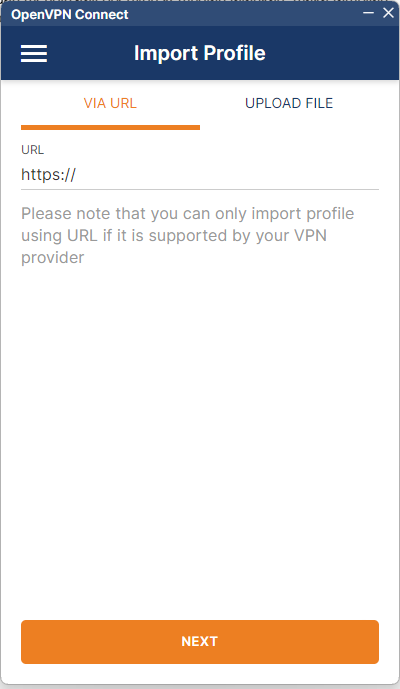
- Open the application, then select
UPLOAD FILEon the tab bar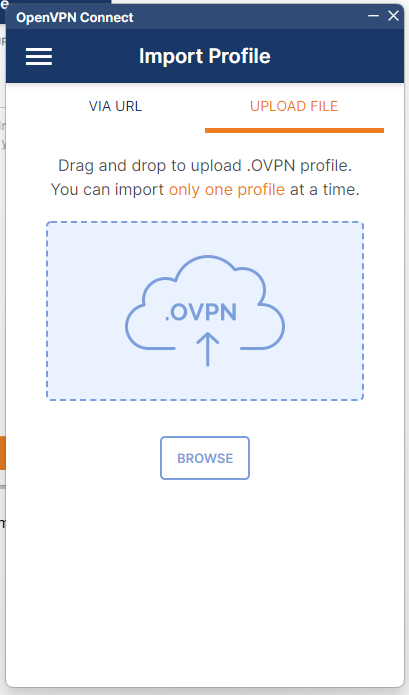 Note
NoteMake sure the OpenVPN profile exists (contact DevOps)
Check whether the file has been extracted (files are usually in the form of tarball, zip) - Select a file with .ovpn extension to upload
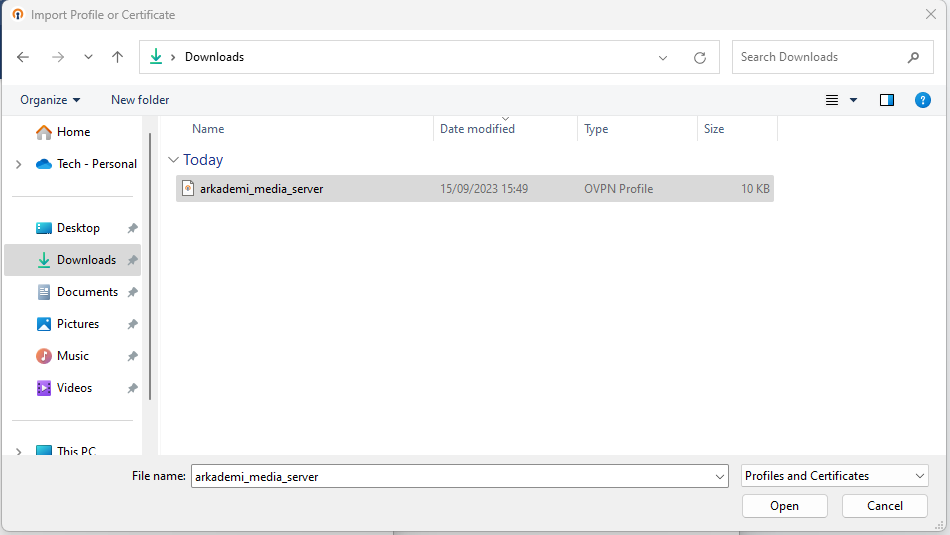
- If the upload process is successful, it will display as shown below
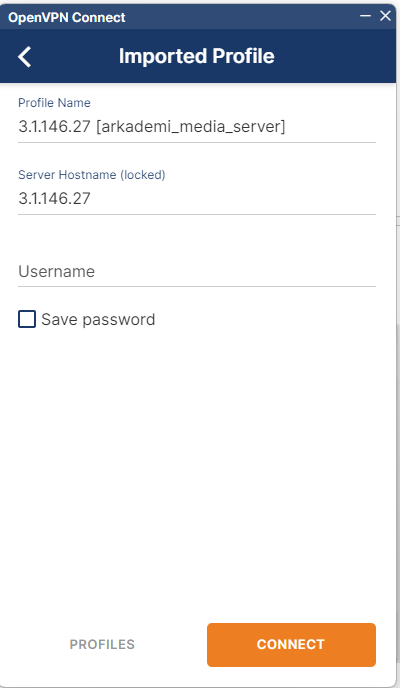
- Enter your username and password, then click
Connect.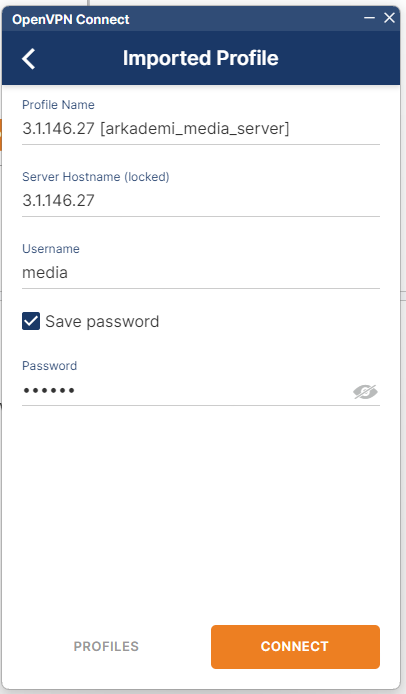 tip
tipCheck the
Save passwordoption so you do not need to log in repeatedly - Once connected, the VPN will run as follows.

- Done