Work-In-Progress Backup
Work-In-Progress Backup is an automated program designed to automatically back up the Work In Progress (WIP) for each local project to the origin git repository. This practice is beneficial to ensure that the data being worked on is not lost and can be recovered in case of system failure, user error, or other unexpected events.
- The following demonstrated in this document is only applicable to macOS devices.
- For Windows users, you can use Autolt instead of Automator and the calendar available on Windows.
How To
To implement this practice, you need to create a new application from Automator and set the schedule in Calendar.
Set Up The Automator
Automator is an application that is only available in macOS. This application helps you to automate repetitive tasks using a point-and-click or drag-and-drop interface. Automator enables the repetition of tasks across a wide variety of programs, including Finder, Safari, Calendar, Contacts and others. To set up the Automator, follow these steps:
a. First Set Up
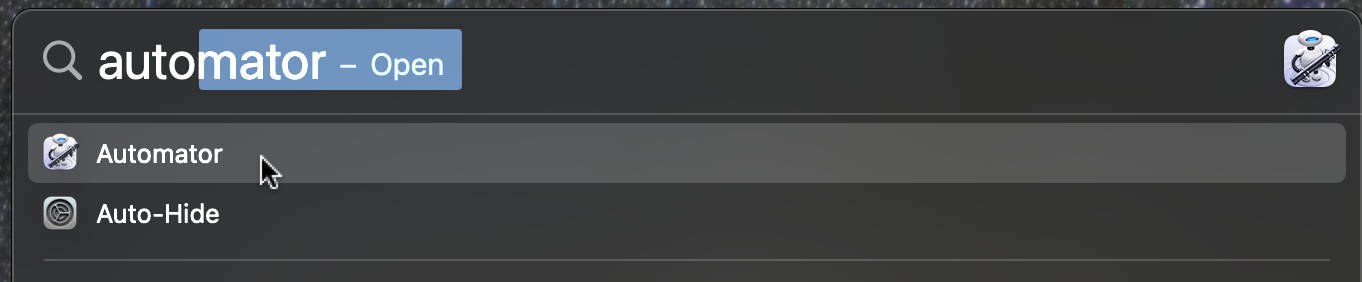
- Open the Automator application.
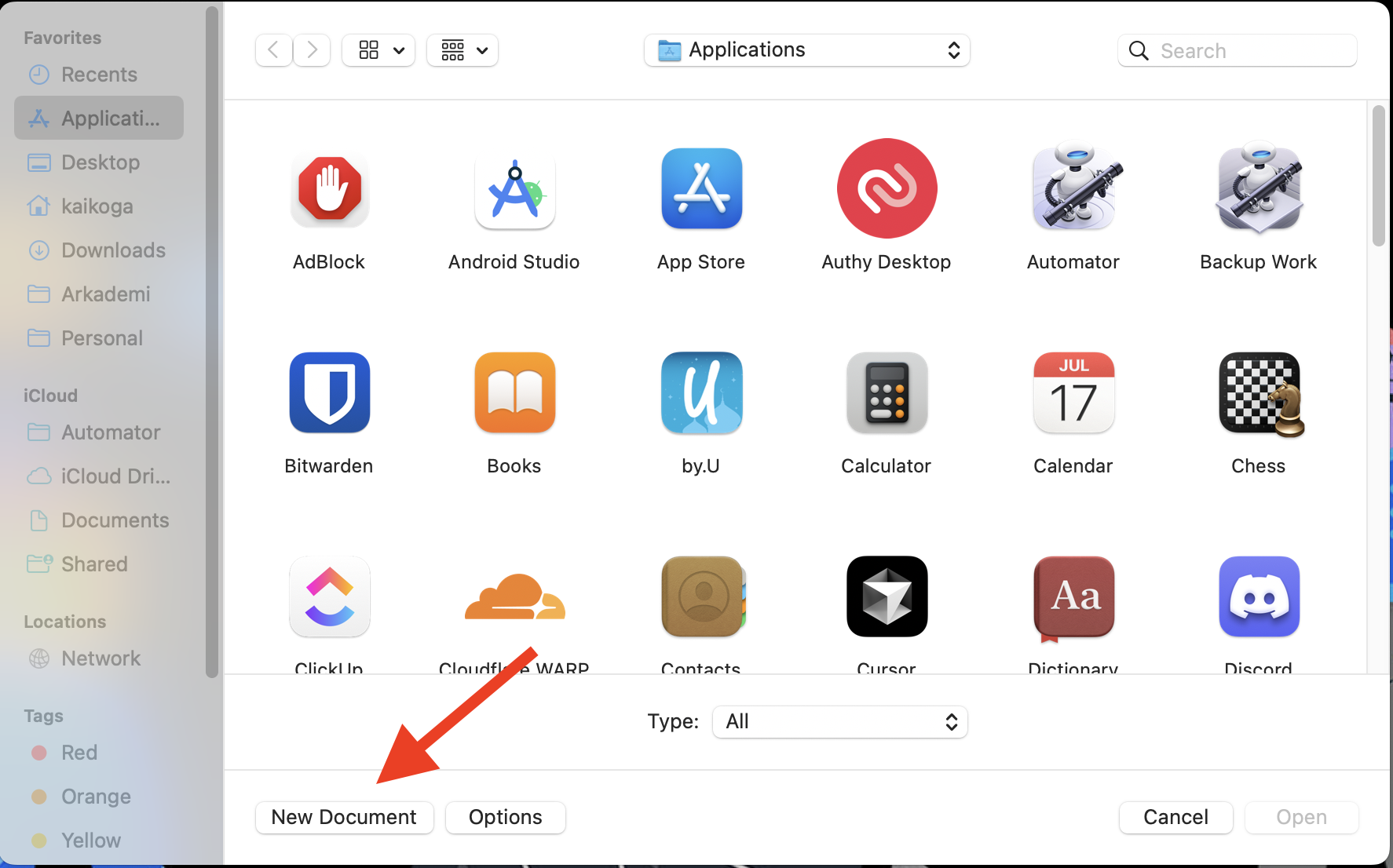
- Click the New Document button.
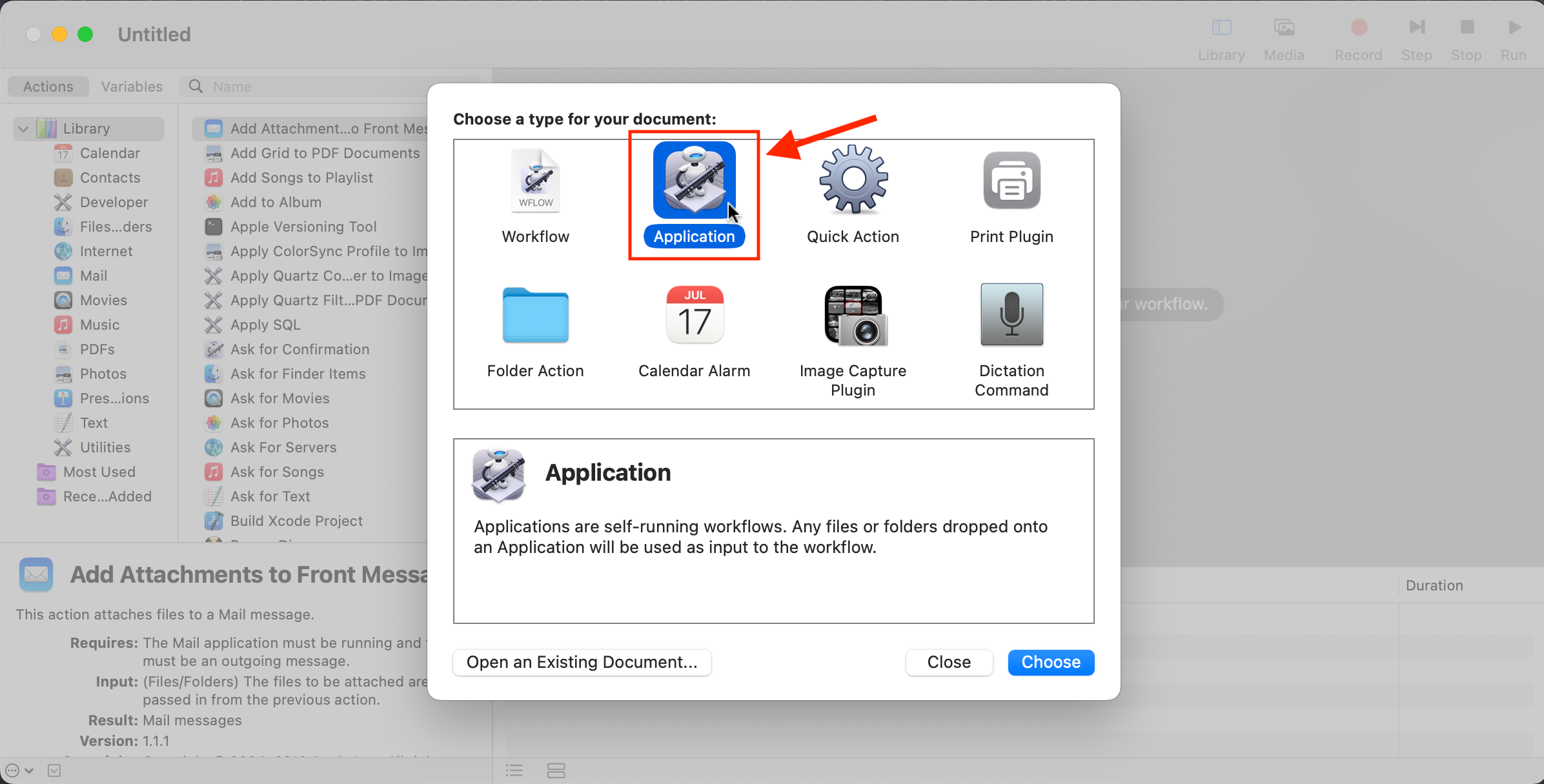
- Choose Application.
- Type
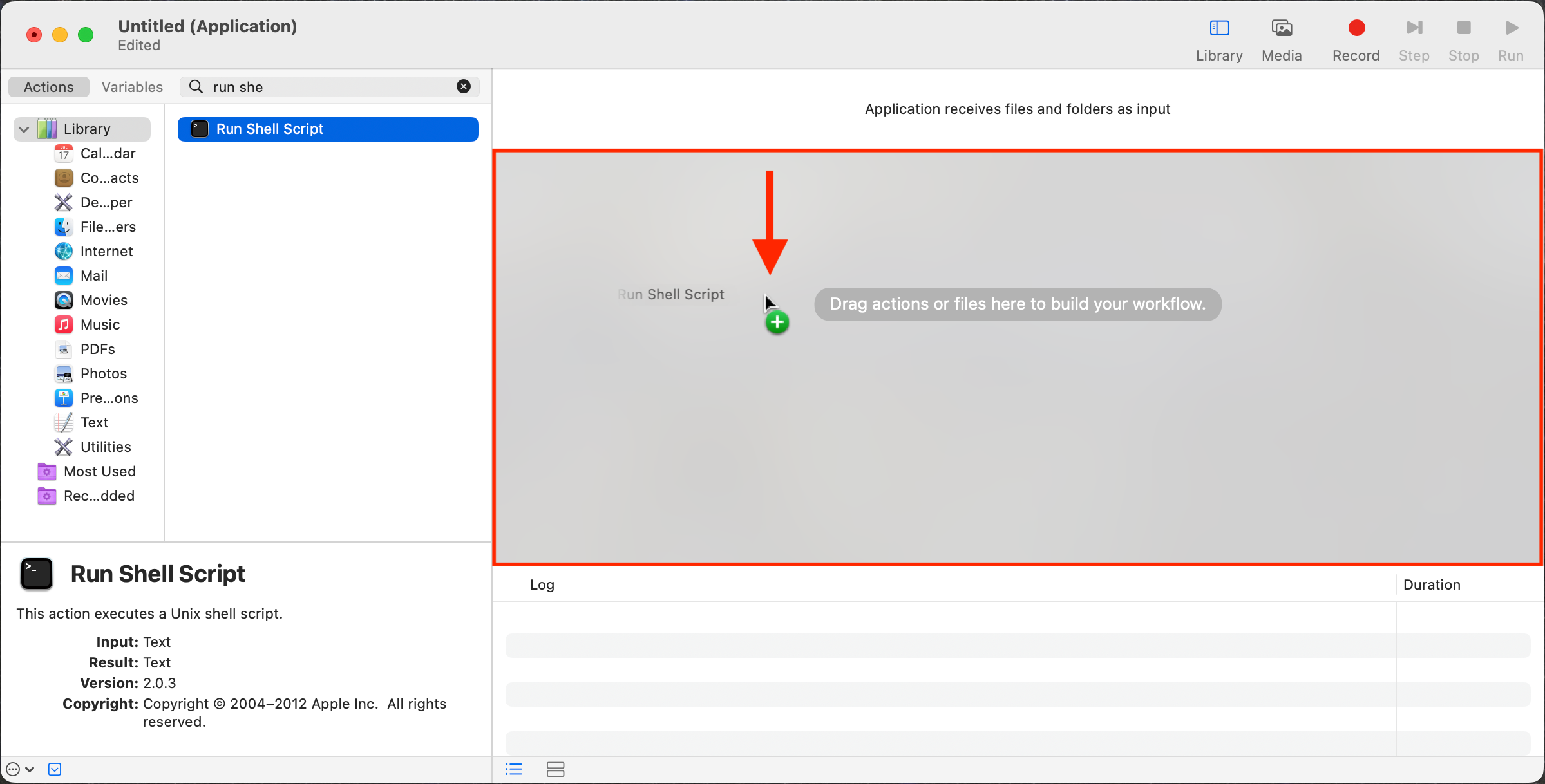
run shell scriptin the search box, then click and drag the Run Shell Script to the right section where it is written Drag actions or files here to build your workflow.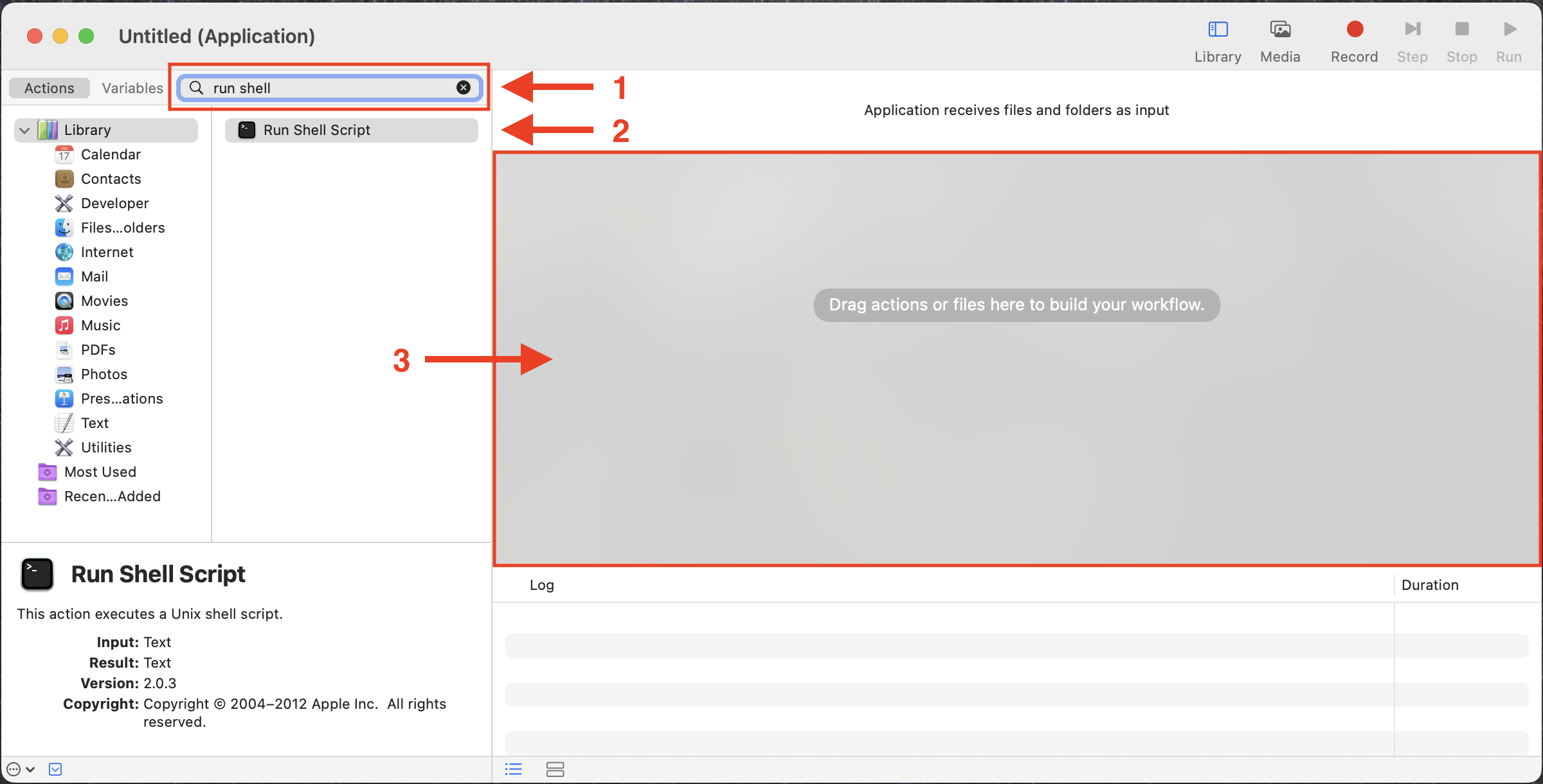
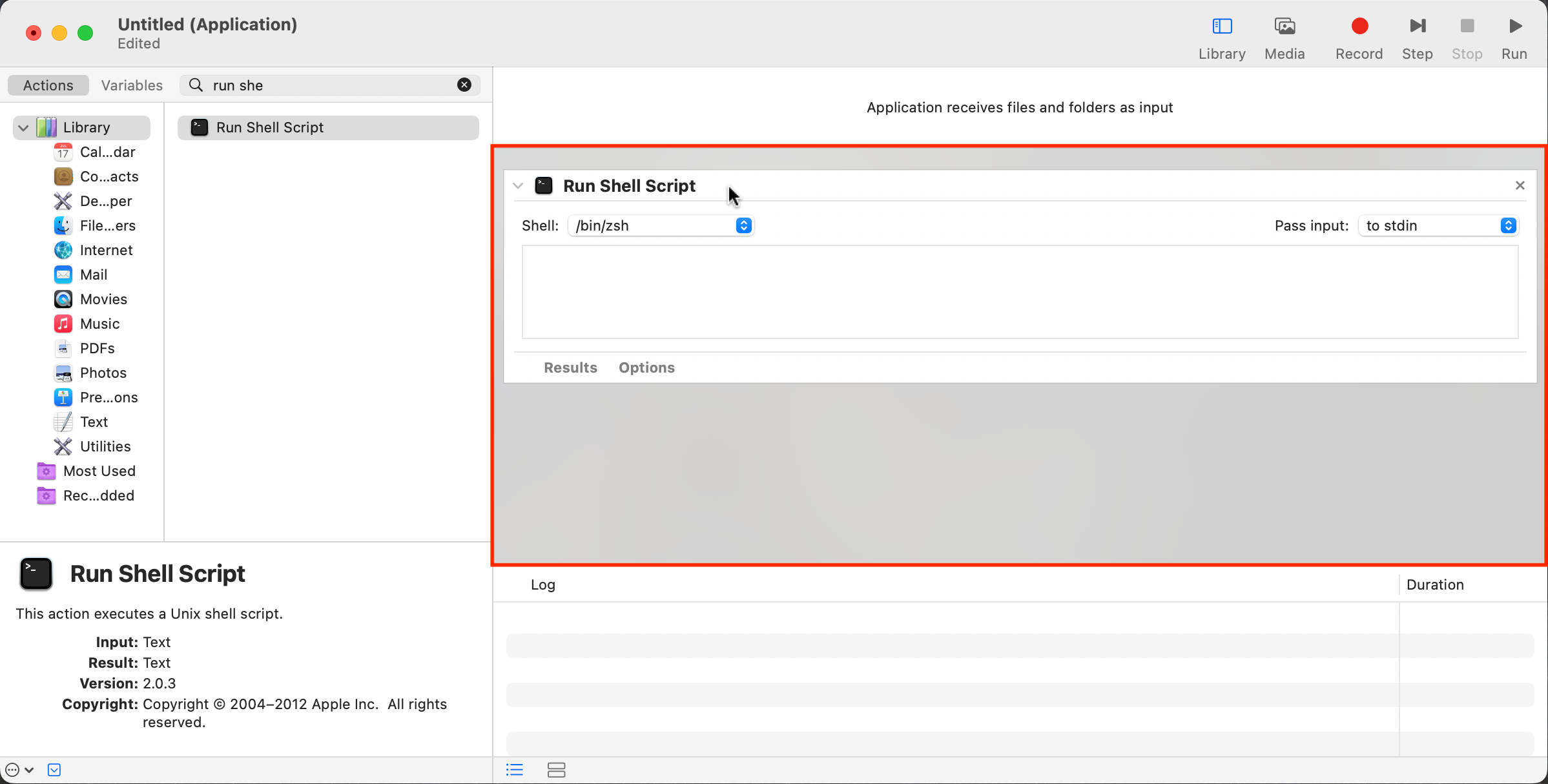
- Make sure you choose
/bin/bashshell type.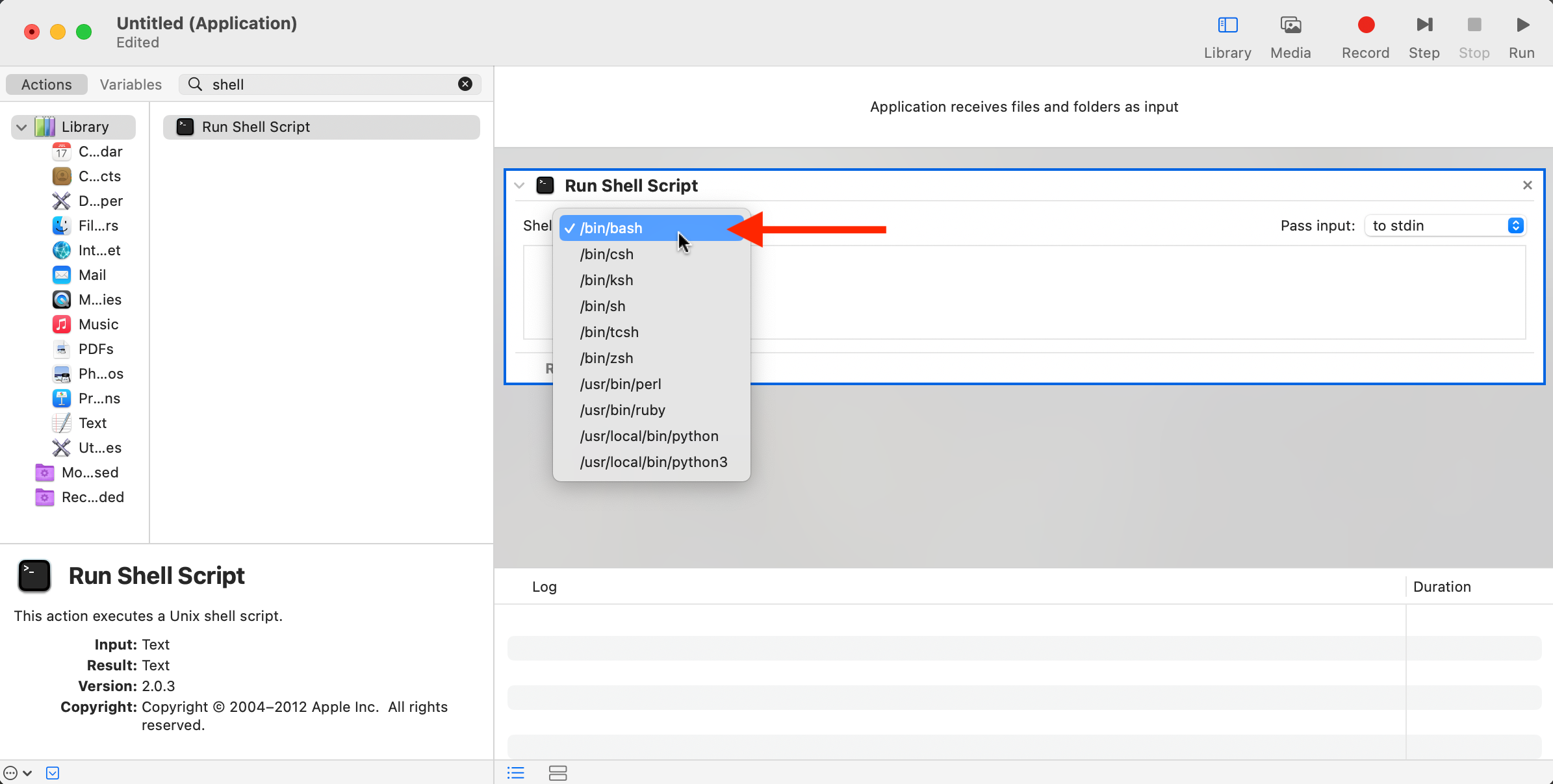
- Copy and paste the Backup Work Bash script to the
Run Shell Scriptarea.tipThe script is stored in
arkademi-flutter/mobile_scripts/backup_work.shdirectory.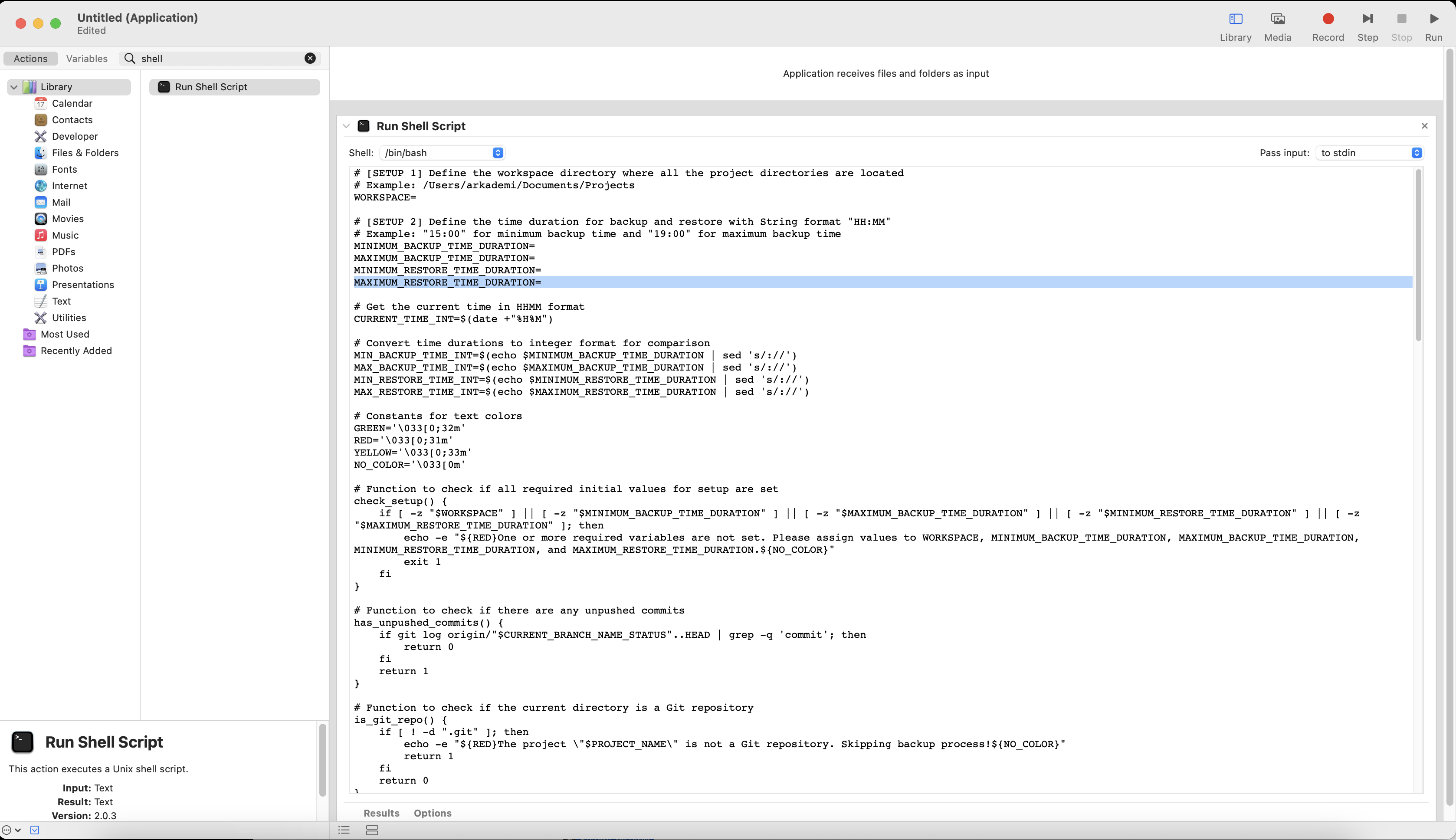
b. Define Workspace Directory
Input the main workspace directory path that stores all the git projects (e.g., arkademi-flutter, ark-module-regular, etc.). Later, Automater will be in charge of reading and then pushing changes that occur and have not been stored in GitLab from the projects contained in the main directory.
# [SETUP 1] Define the workspace directory where all the project directories are located
# Example: /Users/arkademi/Documents/Projects
WORKSPACE=
c. Define Backup & Restore Time Duration
# [SETUP 2] Define the time duration for backup and restore with String format "HH:MM"
# Example: "15:00" for minimum backup time and "19:00" for maximum backup time
MINIMUM_BACKUP_TIME_DURATION=
MAXIMUM_BACKUP_TIME_DURATION=
MINIMUM_RESTORE_TIME_DURATION=
MAXIMUM_RESTORE_TIME_DURATION=
The script above is to set the time duration and also to determine the type of action to be performed (backup or restore) based on the allocated time. If you put a time value on the variables MINIMUM_BACKUP_TIME_DURATION and MAXIMUM_BACKUP_TIME_DURATION then the process will be Backup, but if you put a time value on the variables MINIMUM_RESTORE_TIME_DURATION and MAXIMUM_RESTORE_TIME_DURATION then Automator will perform Restore.
Later you will learn how to do this step automatically using Calendar and you do not need to fill in those fields.
d. Finishing The Set Up
- After completing the setup, save it as an application.
- Give the application a name, Set the save directory to Applications, and click the Save button.
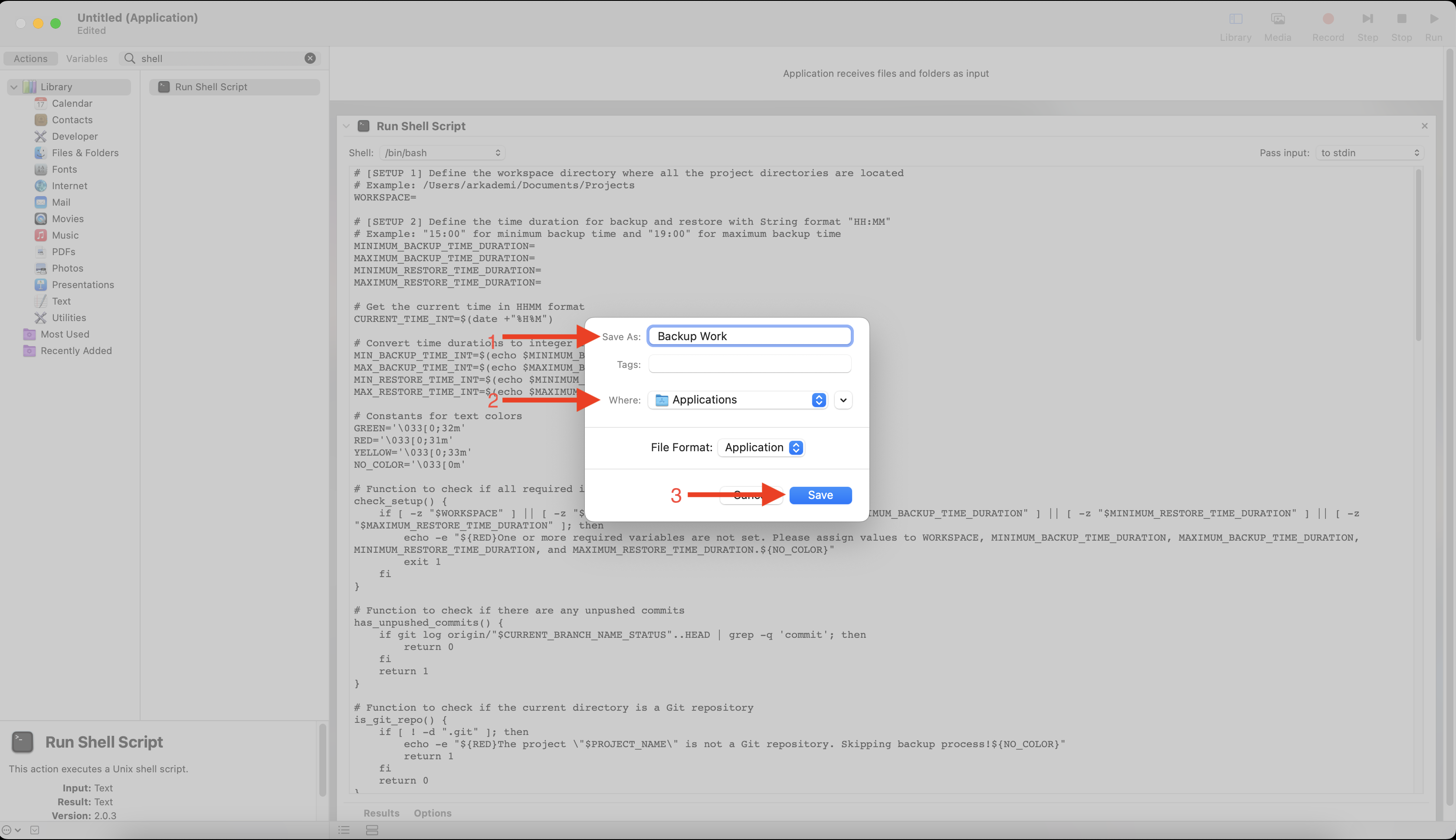
- Finally, you can start using the Automator application based on the specified minimum & maximum backup & restore durations. To enable auto-triggering, continue to the next step.
Set Up The Calendar
Calendar is used to create a schedule that triggers Automator to run. Each schedule is specified by naming the event on the calendar, there are two events namely Backup Work and Delete WIP Branches. Backup Work is an event to perform a backup and Delete WIP Branches is an event to to delete branches that are backed up to avoid overcrowding the main repository.
Here are the setup steps:
- Double-click on the current date and time, this will open a pop-up form.
- Fill in the New Event field with
Backup WorkorDelete WIP Branches, and adjust as needed. For example, fill in the field withBackup Work.tipEach event is created similarly, the only difference is the name of the event as mentioned.
- Fill in the start and end to meet the
MINIMUM_BACKUP_TIME_DURATIONthat you have previously set in Automator.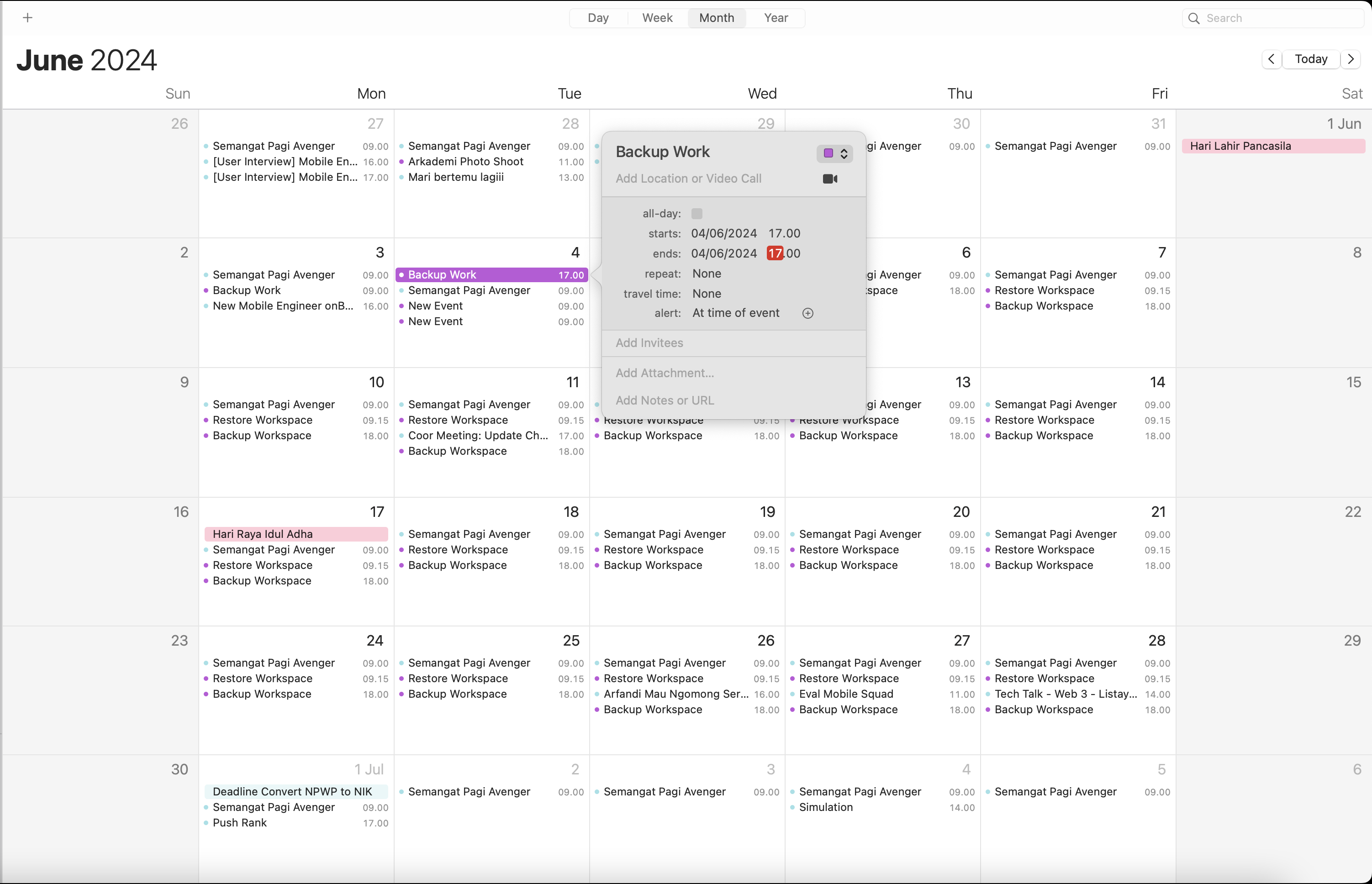
- For the repeat field, select
Customand set it to weekdays.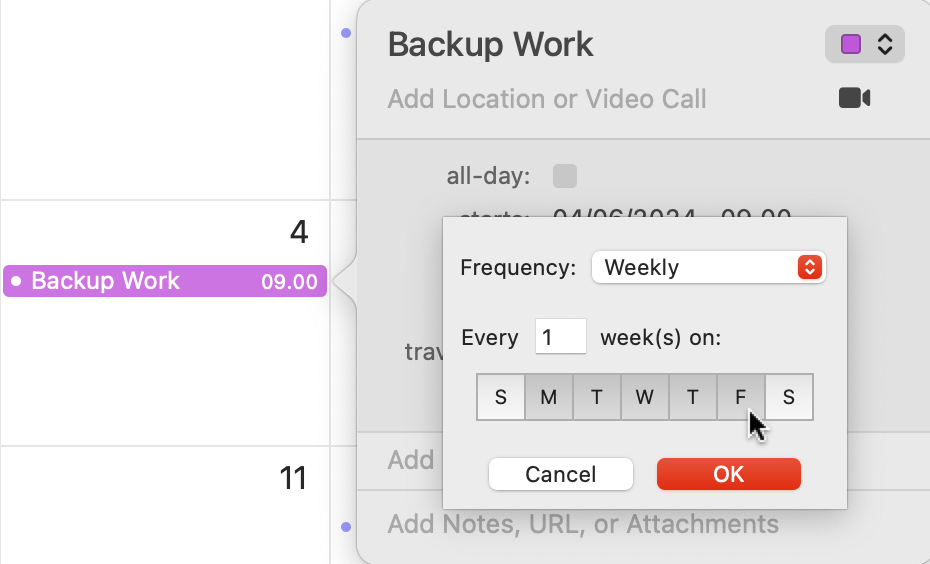
- Continue to the alert field, and select
On eventfor Alert. Then add another alert by clicking the+button next to the alert field. Then select Custom, to open another pop-up input.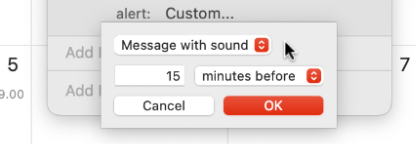
- Change
Message with soundtoOpen file.
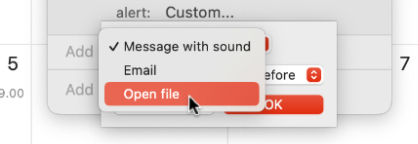
- Change
CalendartoOther, then select the Backup Work application you made before which is located in the Applications directory.
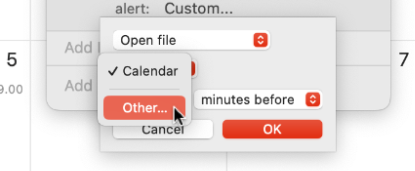
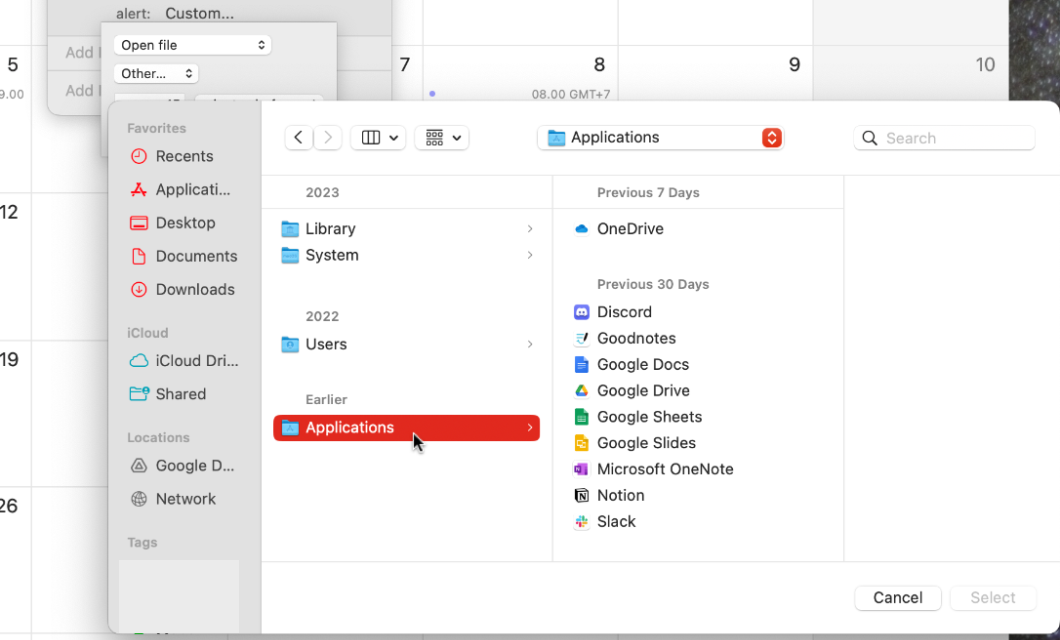
- Change
minutes beforetoAt event time. Then click OK and Apply to save the event schedule.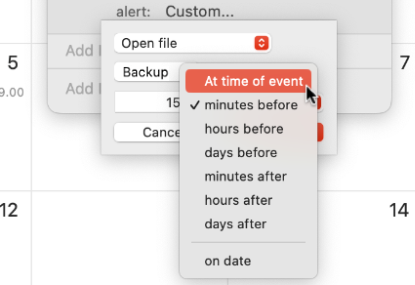
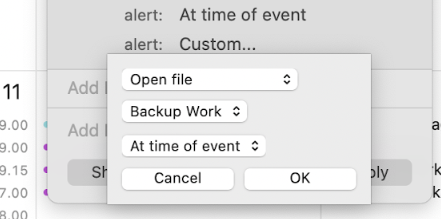
- The backup schedule is set! The Backup Work Application is ready to use and run.

If your device is not connected to the internet when the time comes, Automator will not work. Then you have to do it manually by clicking on the Automater application you created.
How It Works
After you create the new application by Automator and set the time in Calendar, your device is ready to run the Work In Progress Backup! The Calendar will automatically trigger the Automator to execute the actions according to the saved event.
The results of Backup Work are stored in automatically created backup branches named wip/<branch type>_<description>. When the original contributor logs in the next day, this practice automatically deletes those branches to remove unused branches and prevent branch spam in the original git repository.
For more details about the wip branches, refer to the Git Branching document.
To verify that workspace changes have been successfully backed up, you can check notifications sent by Flutter Gitlab in the Slack channel #mobile-avenger with the following example message:
Tech Arkademi pushed new branch wip/feature_migrate_offline_video_entity_type_data to Arkademi Tech / Module Prakerja - Mobile
For the deleted backup branches, you will receive the example message as follows:
Tech Arkademi removed branch wip/feature_migrate_offline_video_entity_type_data from Arkademi Tech / Module Prakerja - Mobile
Created at :
Writer: Kai
Editor: Media