Clear Cache Remote Config
The Clear Cache Remote Config feature allows engineers to remotely instruct the mobile application to delete specific types of cached data using Firebase Remote Config. This functionality helps manage app data effectively, ensuring that cached data is updated or removed as needed, without requiring a manual app update.
Features and Supported Instructions
Currently, the mobile application supports the following types of cache-clearing instructions:
-
video
Deletes all offline videos that have been downloaded to the device. -
sharedPreference
Clears all data stored in the application's shared preferences. -
database
Deletes the SQLite database used by the application.
If the video instruction is executed, the database instruction must also be executed. This is because the SQLite database contains references to the downloaded videos. Executing only the video instruction will cause errors, as the app will attempt to reference video files that no longer exist.
How It Works
The workflow of the Clear Cache Remote Config feature is as follows:
Remote Config Configuration
- Open the Firebase Console and navigate to the Remote Config menu.
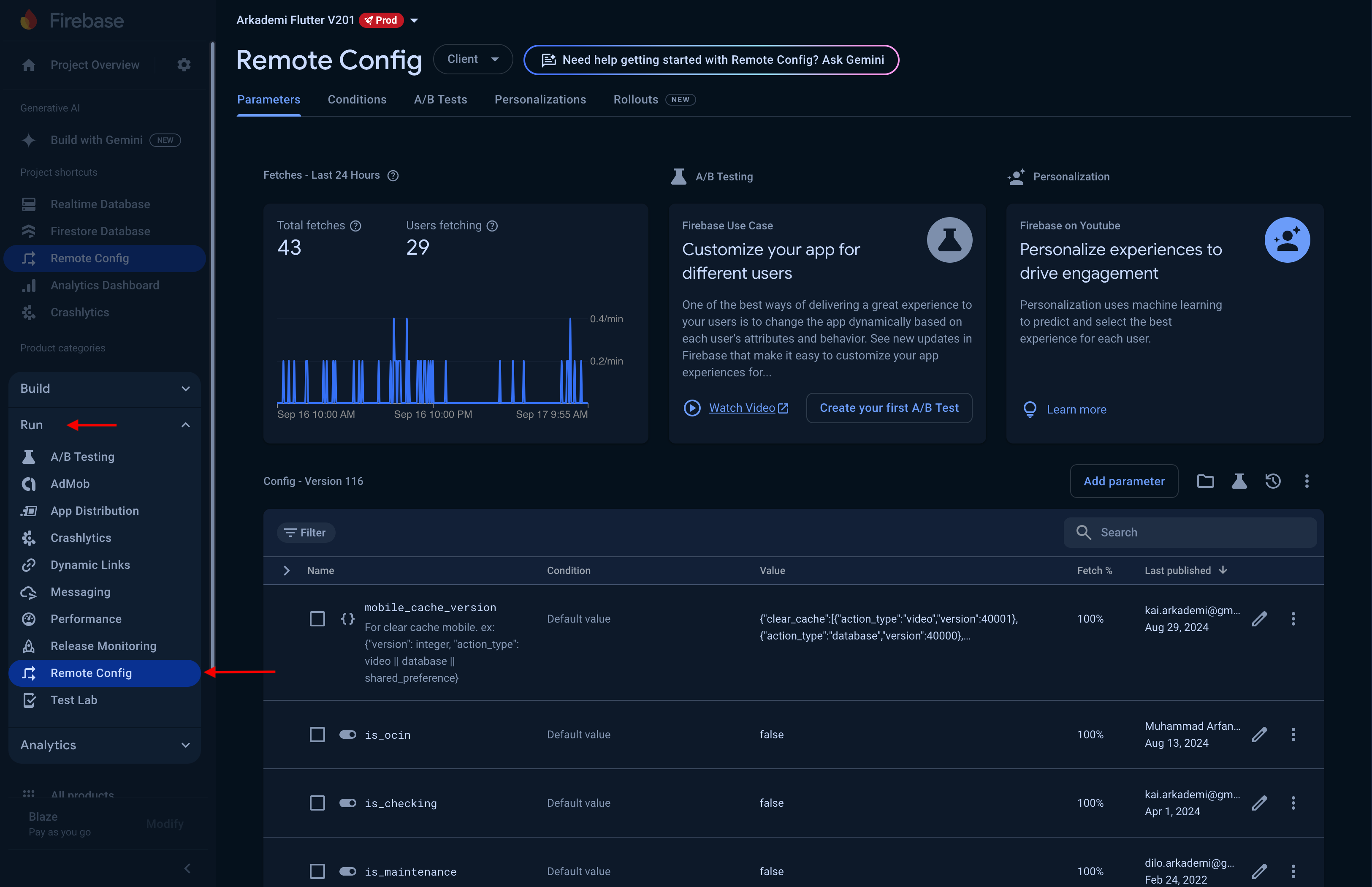
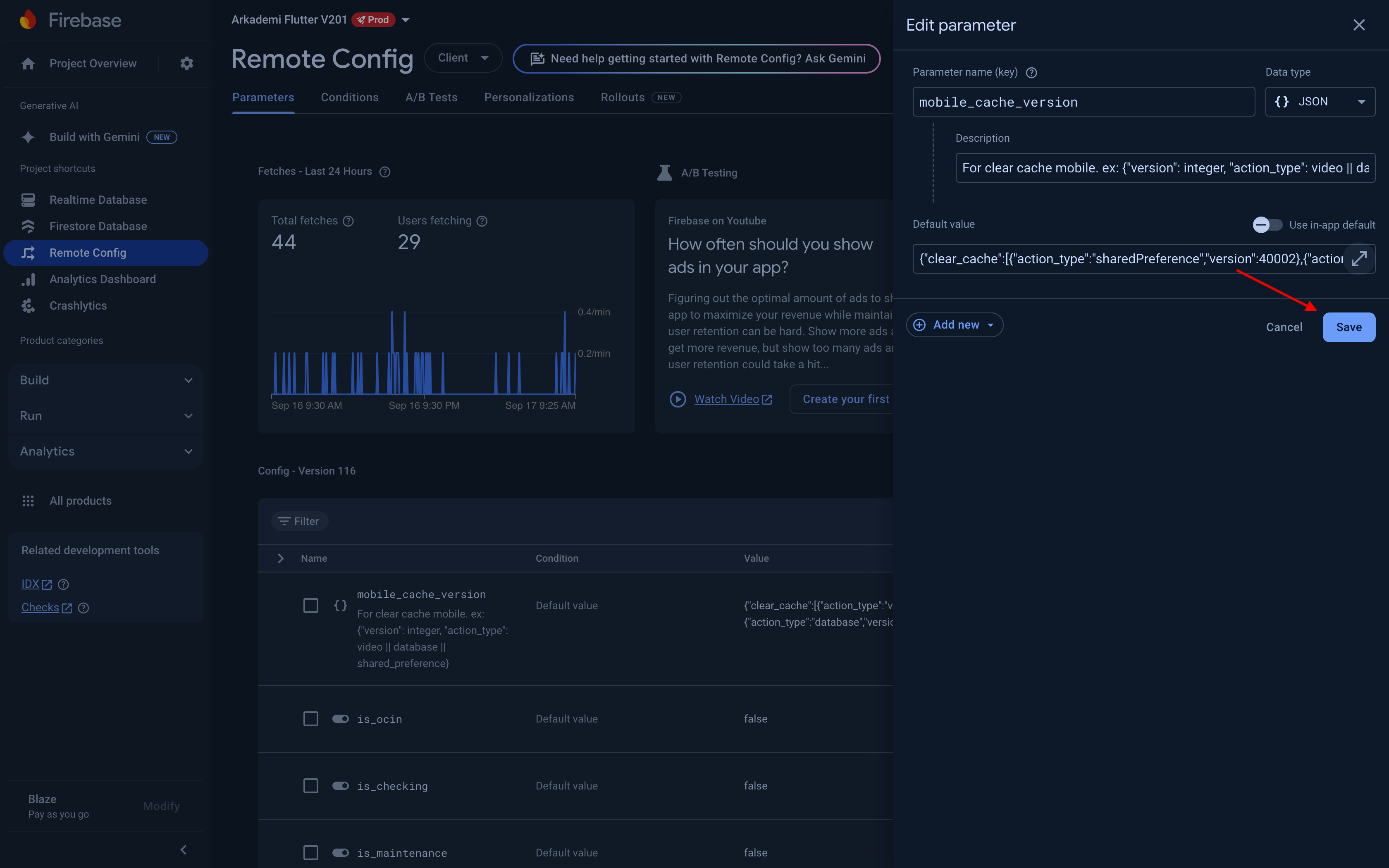
- Locate the key
mobile_cache_versionand edit its value.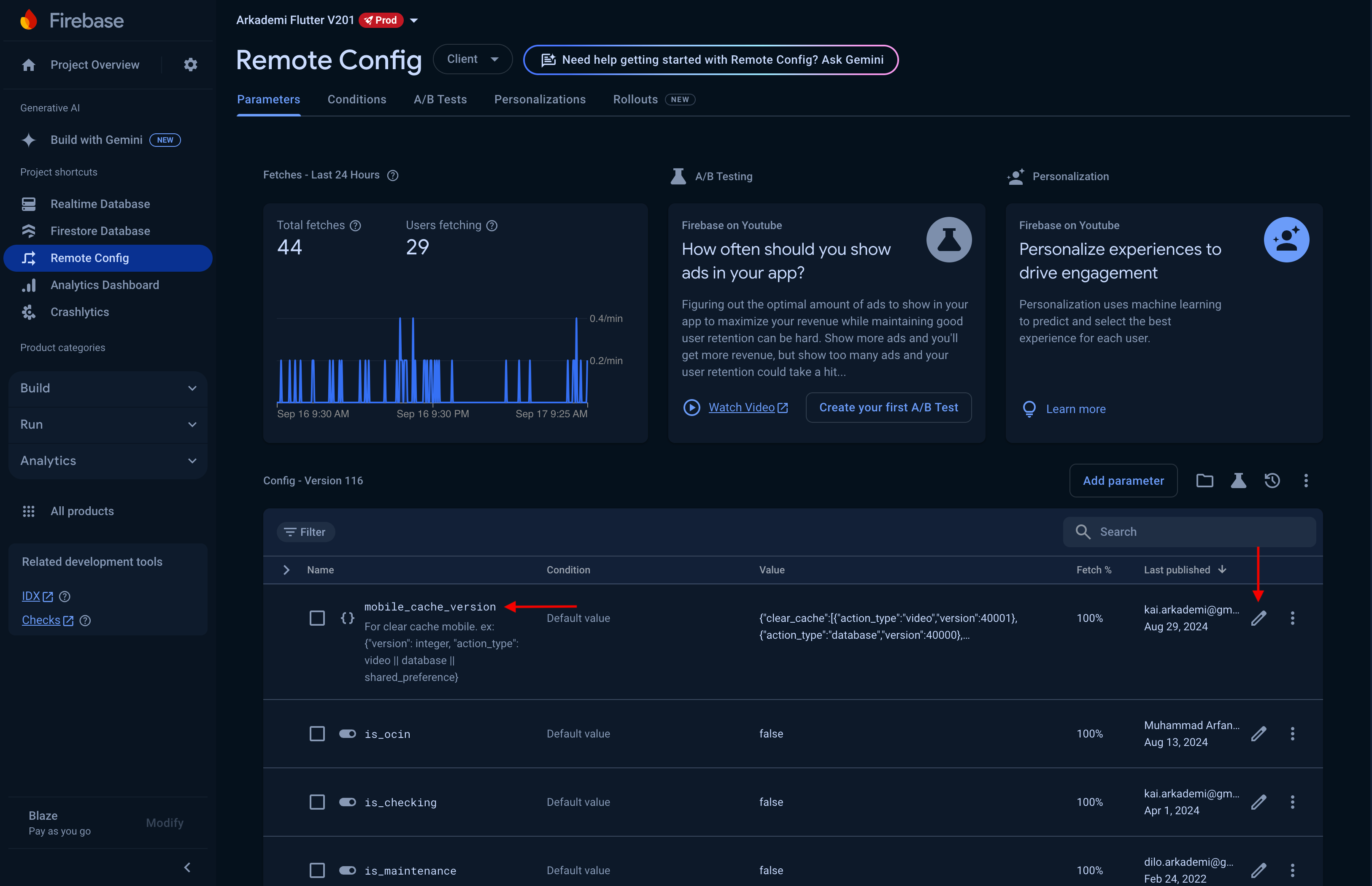
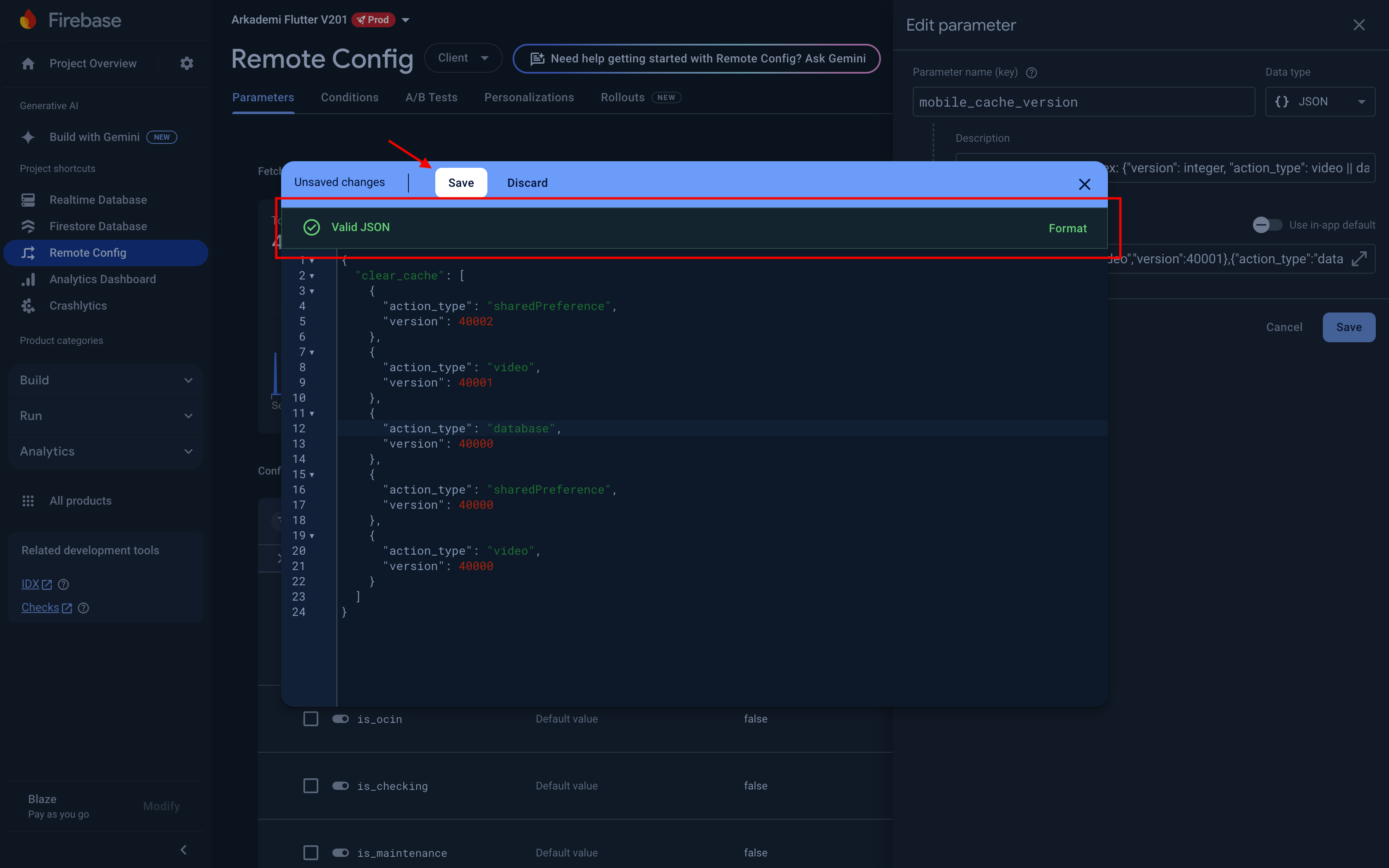
- Expand the JSON editor and add the required fields:
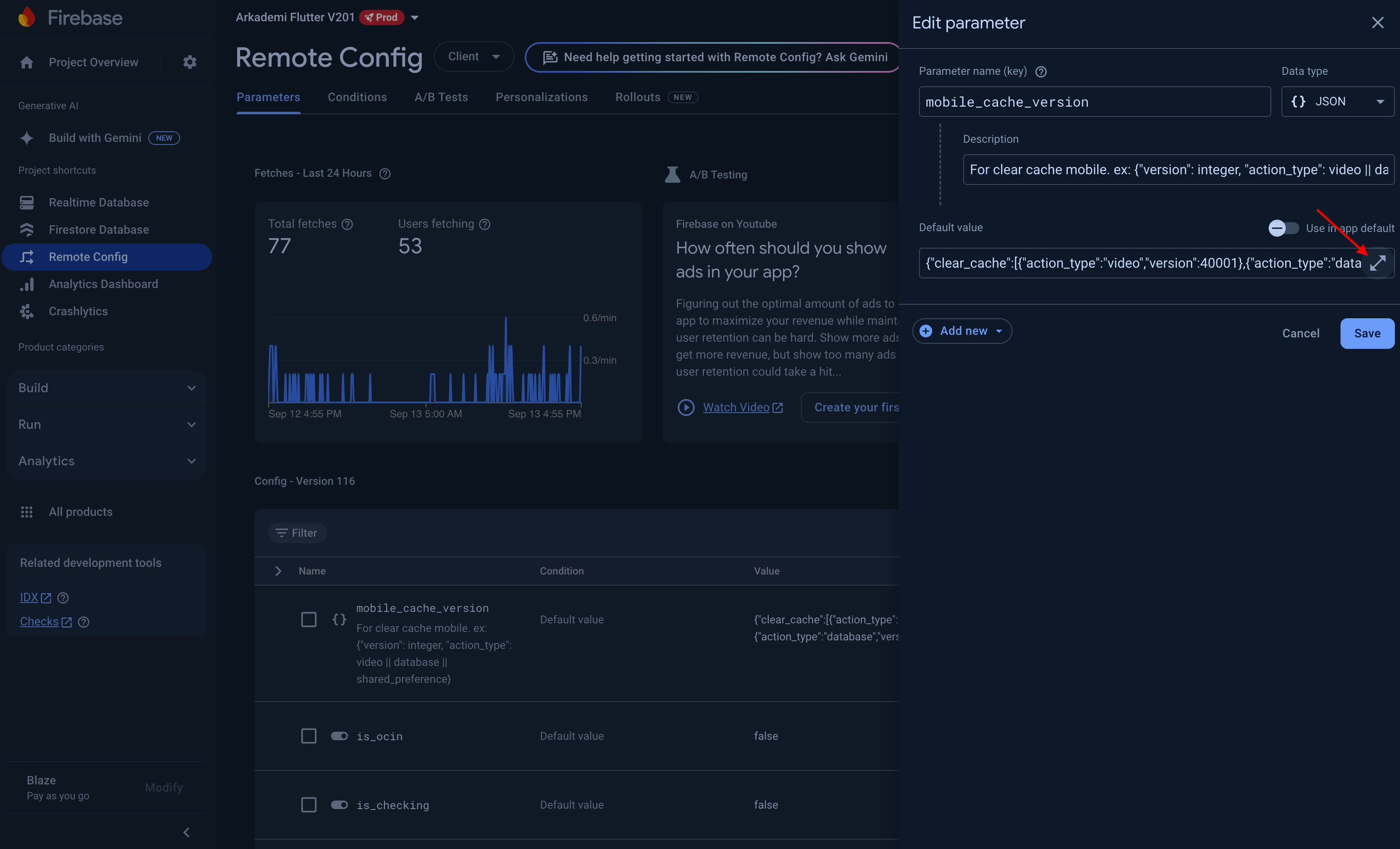
- Add the
action_typeandversiondata.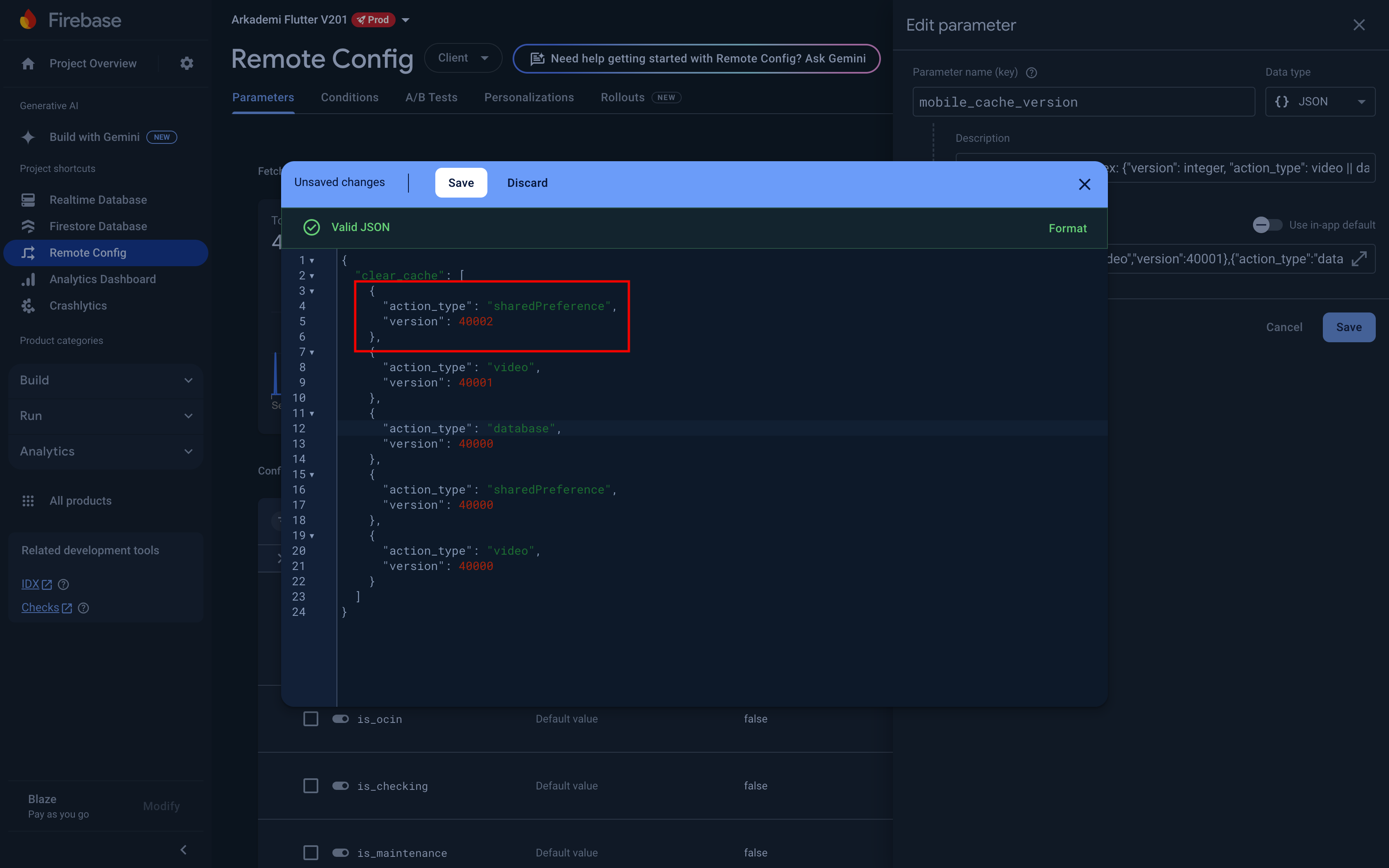
Sample JSON Configuration
{
"version": "40002",
"action_type": ["video", "database"]
}action_type: Specifies the type of cache-clearing instruction (e.g.,video,sharedPreference, ordatabase). Supports multiple instructions in an array format.version: Defines the app version that will execute the instruction. Ensures the instructions are executed only by the specified app version (40002in this example).
- Validate the JSON for errors, then save the configuration.
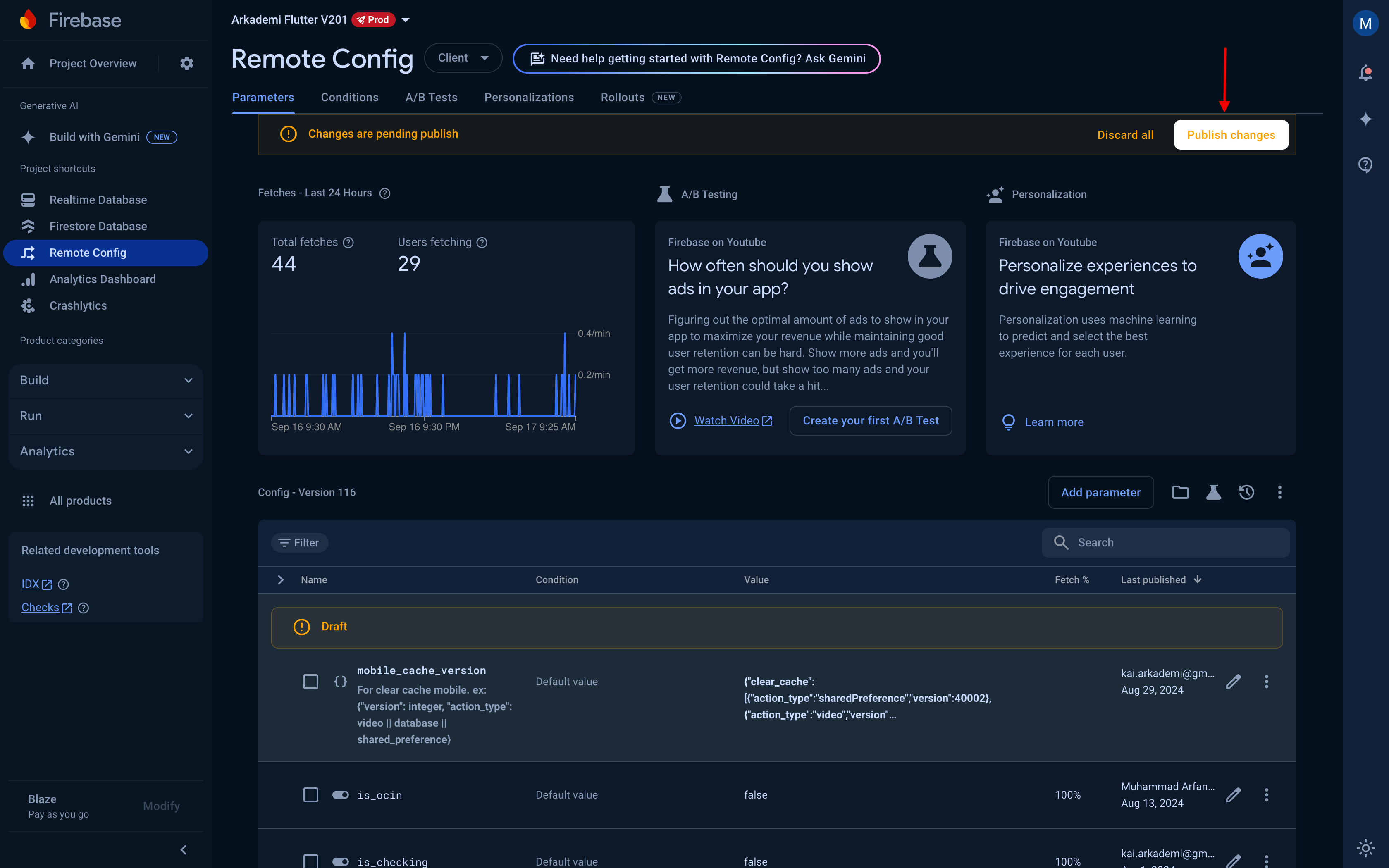
- Click Publish Changes to push the updated configuration to Firebase Remote Config.
Mobile App Workflow
Once the Remote Config is updated, the mobile app will execute the cache-clearing instructions based on the following steps:
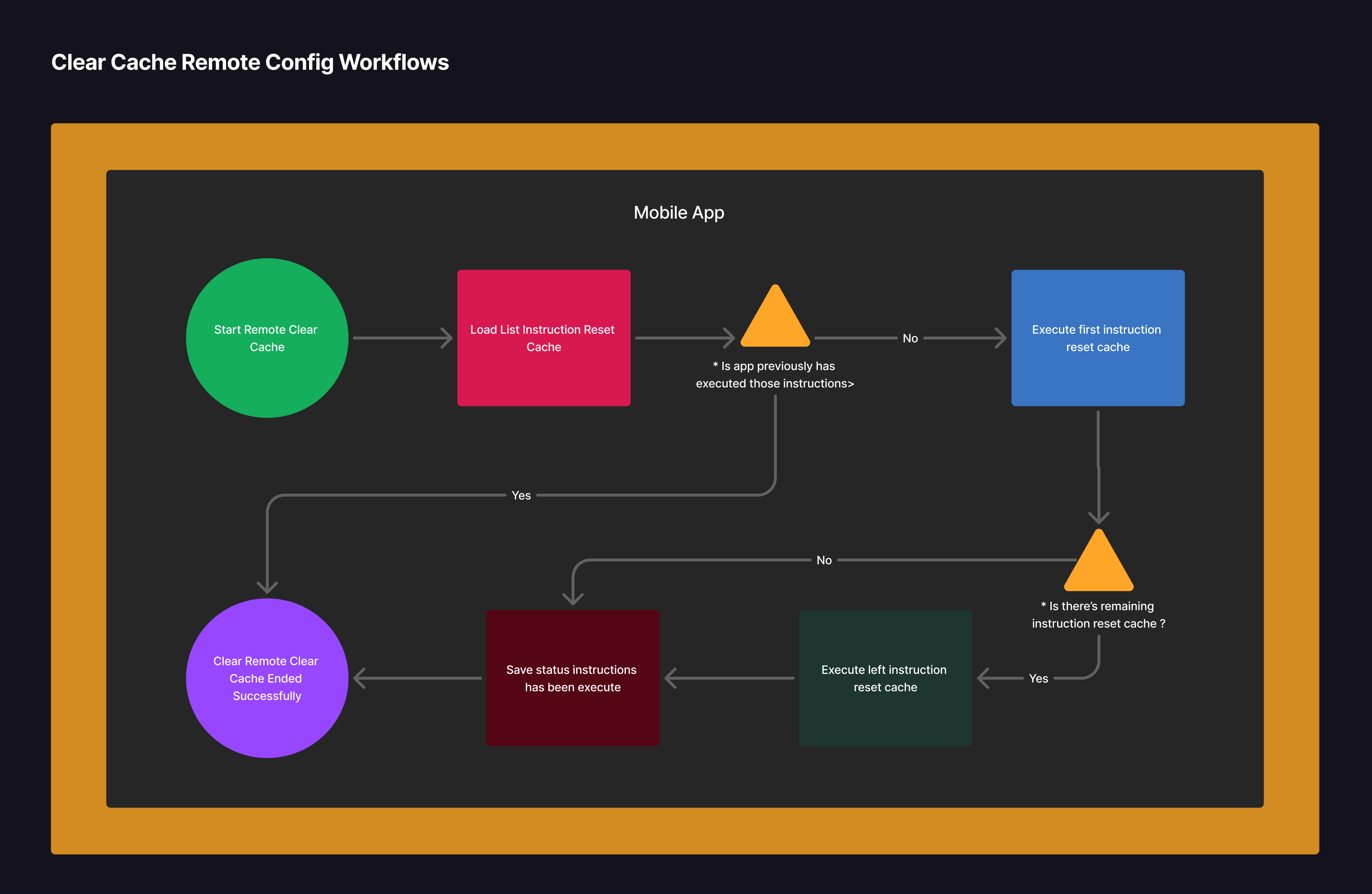
Step 1: Start Clear Cache Process
- When the app launches for the first time after an update, it will trigger the Clear Cache Remote Config feature.
- During this process, the user will remain on the
SplashScreenpage until the cache-clearing workflow is completed.
Step 2: Load Cache Reset Instructions
- The app fetches the latest instructions from Remote Config and retrieves the last executed instructions from local storage.
- It compares the locally stored execution history with the new instructions from Remote Config to identify pending instructions.
NOTE: If no new instructions are found, the workflow terminates immediately.
Step 3: Execute the First Cache Reset Instruction
- The app executes the first pending cache-clearing instruction from the list.
- Upon successful completion, the app proceeds to the next instruction.
Step 4: Execute Remaining Instructions
- The app iterates through the remaining instructions and executes them one by one until all instructions are completed.
Step 5: Save Execution Status
- After all instructions have been executed, the app records the status of the executed instructions in local storage.
- This information is used by the app to identify which instructions have already been processed when the Clear Cache Remote Config feature is triggered in the future.
NOTE: This ensures that previously executed instructions are not repeated unless new instructions are added to the Remote Config.
Key Considerations
- Consistency of Instructions: Ensure that the
databaseinstruction is included whenever thevideoinstruction is executed to avoid errors. - Version Control: Use the
versionparameter to control which app versions execute the instructions. This ensures backward compatibility and prevents unsupported app versions from receiving invalid configurations. - Testing: Before publishing changes, test the configuration on development or staging environments to verify the workflow.
Example Use Cases
-
Clearing Offline Videos After Feature Deprecation:
If offline video support is removed, use thevideoanddatabaseinstructions to delete all cached video files and references. -
Resetting User Preferences:
To reset app settings for all users, use thesharedPreferenceinstruction to clear shared preferences. -
Database Schema Update:
When updating the SQLite schema, use thedatabaseinstruction to delete the old database version and ensure a fresh start.
Troubleshooting
Issue: App Errors After Executing video Instruction
- Cause:
databaseinstruction was not executed along withvideo. - Solution: Always pair the
videoanddatabaseinstructions to maintain consistency.
Issue: Instructions Not Being Executed
- Cause: Incorrect
versionparameter or unsaved changes in Firebase Console. - Solution: Verify the
versionparameter matches the app version and ensure changes are published in Firebase Console.
Writer: Arfandy, Media
25 November 2024