Inject Courses Data
Introduction
This document will cover instructions for performing data injection into the server to input information about regular and prakerja courses.
Overview
The addition of course data manually can be done through WP and Arkademi Admin, but this method takes quite a long working time. Therefore, injecting data directly to the server from csv-formatted data is the solution. There are three parts in the course that can be added to the server through the injection process, namely Unit, Question, and Quiz.
How to
In the data injection process, there are several steps that involve the use of specific applications. Explanations will be given in the following divided chapters.
Prepare CSV File
First you have to prepare the Inject Data File that uses csv type data, the data needs to be prepared in a predefined format as in the following file.
File example inject unit
File example inject question
File example inject kuis
The data source is curriculum data.
Using FileZilla
Once the csv data is ready, you need to add the file to the provided directory on the server using FileZilla. FileZilla is a software used to transfer files between your device and a server via FTP (File Transfer Protocol), SFTP (SSH File Transfer Protocol), or FTPS (FTP over SSL/TLS) protocols. With FileZilla you can easily connect your device with a remote server, manage files and folders on both sides, and perform operations such as uploading, downloading, deleting, and renaming files.
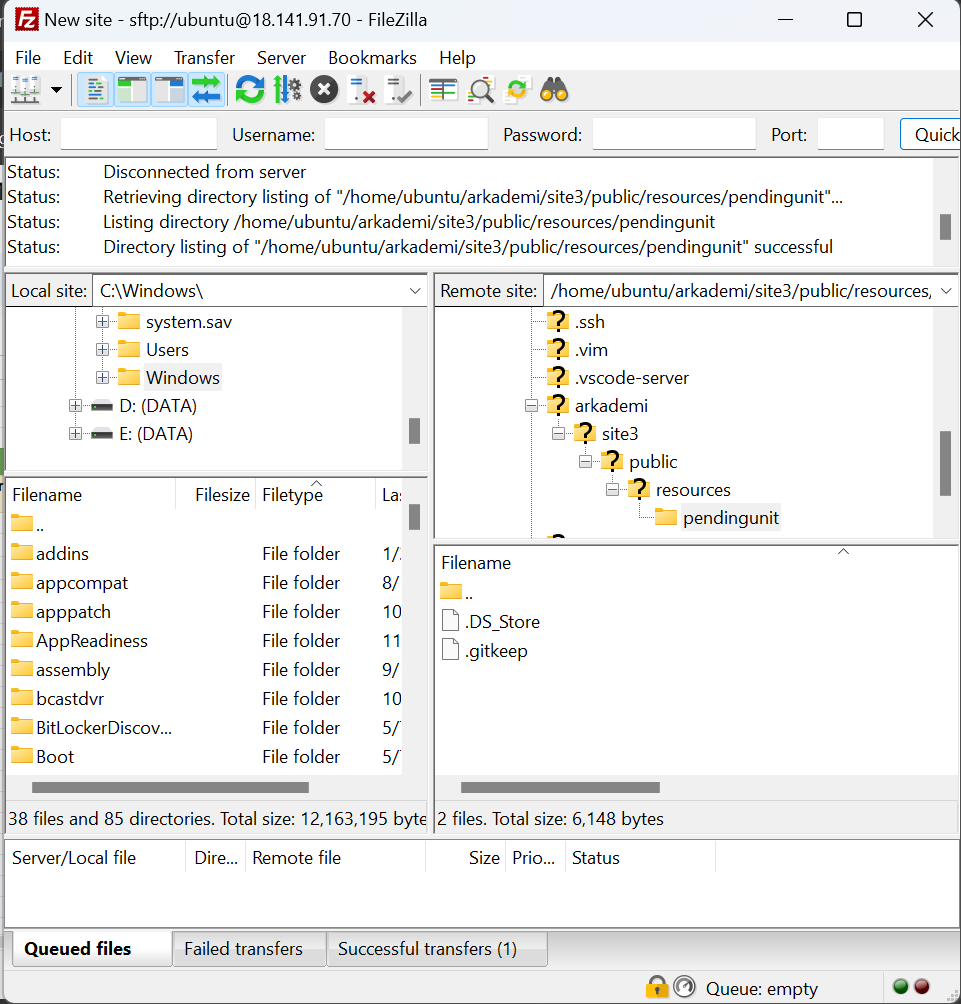
Host
Host refers to the address of the server you want to connect to using the FTP (File Transfer Protocol), SFTP (SSH File Transfer Protocol), or FTPS (FTP over SSL/TLS) protocol. This host is usually the IP address or domain name of the server you are trying to access.
18.141.91.70
3.1.38.183
Remote Site
Remote site refers to the server or site that is the destination or storage place for the files you upload or download.
FTP Path Reguler
/home/ubuntu/arkademi/site3/public/resources/pendingunit
/home/ubuntu/arkademi/site3/public/resources/pendingquestion
/home/ubuntu/arkademi/site3/public/resources/pendingquiz
FTP Path Prakerja
/home/ubuntu/arkademi/api-course-prakerja/resources/pendingunit
/home/ubuntu/arkademi/api-course-prakerja/resources/pendingquestion
/home/ubuntu/arkademi/api-course-prakerja/resources/pendingquiz
Termius
Termius is a terminal application and SSH client used to manage and access remote servers, computers, or other devices via the SSH (Secure Shell) protocol.
You can use Termius to connect to SSH servers securely. This allows you to access and manage a remote server or device without having to be at its physical location.
After uploading the csv file to the server via FileZilla, then run some commands on termius to inject the data into the database.
Open Docker with Termius
Open the docker by the following command.
sudo docker exec -it public_api_app_1 sh
Next Command Code
After opening docker, perform the following command code based on the type.
The following commands apply to both the Regular and Prakerja parts of the course.
For Quiz type, you need to do additional setup (as usual).
php artisan job:dispatchNow ImportUnitJob
php artisan job:dispatchNow ImportQuestionJob
php artisan job:dispatchNow ImportStaticQuizJob